

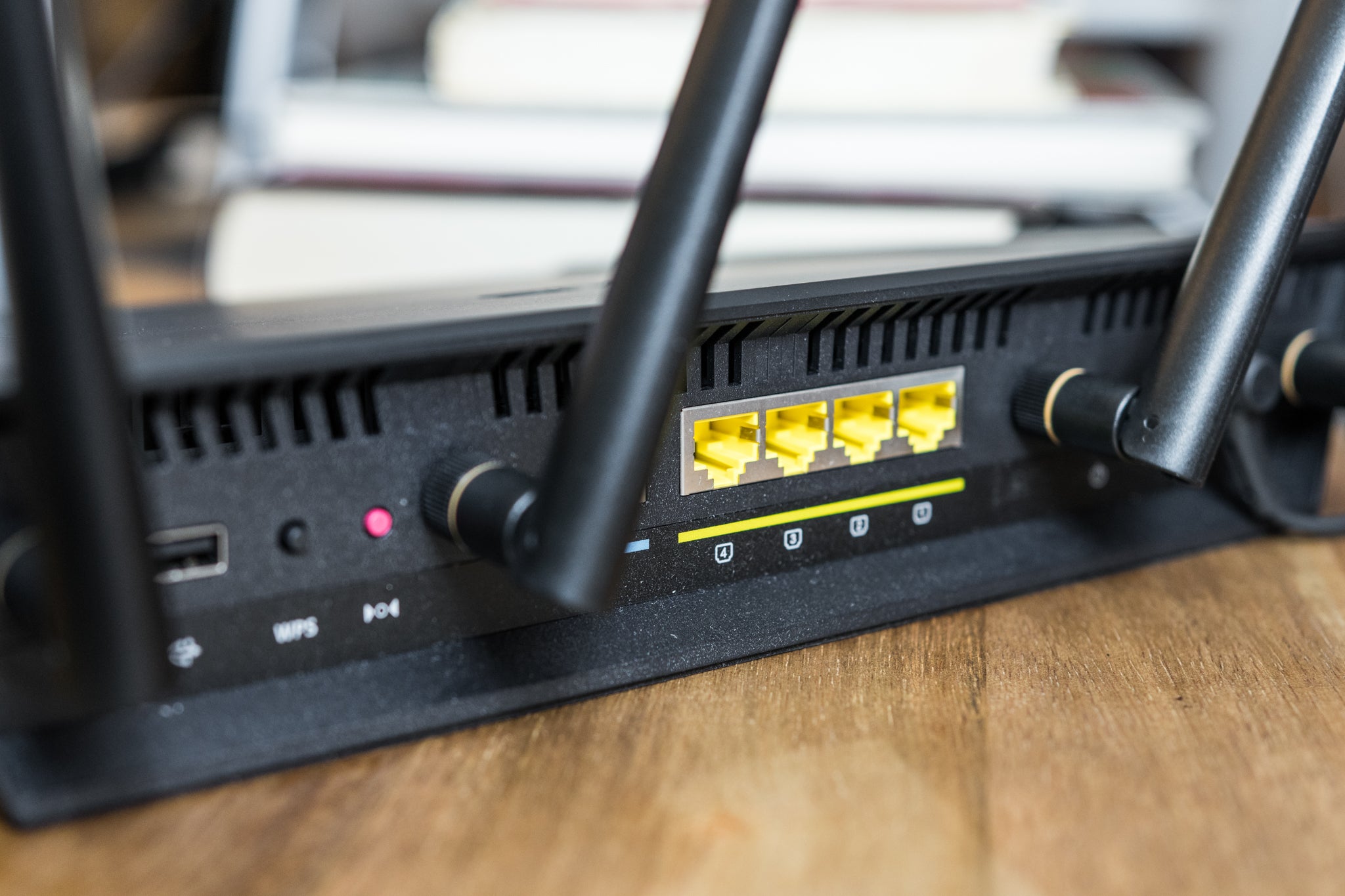
Your router may be working perfectly fine for months and years, and then suddenly, one day, it may begin to behave differently. You may notice slower speeds, frequent disconnections, weaker coverage, and increased latency on your network, issues that you normally didn’t encounter. These sudden changes in router performance can be frustrating, especially when your internet service seems to be working normally.
A sudden change in router performance can be due to multiple reasons, including network congestion, firmware changes, overheating, interference, new connected devices, ISP issues, or hardware problems. Identifying the actual cause can help you troubleshoot this issue and get everything back to normal.
So, with that said, let us discuss the common causes of sudden changes in router performance so that you can identify and address them.
Firmware Updates
Firmware updates are released by router manufacturers only on a regular basis to improve security, fix bugs, and introduce new features. However, an update can change how the router manages wireless channels, device connections, security settings, or bandwidth. This usually occurs after a firmware update, and you may notice different WiFi speeds, changes in coverage, devices reconnecting differently, and temporary network instability.
Checking the router’s admin panel via tplinkwifi.net or the mobile app to find whether an update was recently installed or not can help identify the cause. If performance changes immediately afterward, review the updated settings and restart the router. If a particular firmware update is causing problems, a later one may resolve them.
Overheating
Wireless routers are designed to operate continuously, but like other electronic devices, excessive heat can affect their performance. A router may overheat when it is operating in a poorly ventilated area, located near another heat-producing device, covered by objects, or placed inside a cabinet. An overheating router can lead to reduced performance, network instability, and repeated disconnections.
Place the router in an open and well-ventilated area, and ensure that its ventilation openings aren’t blocked. If the router becomes unusually hot even when it is properly ventilated, it indicates an ageing device or defective hardware.
Increased Network Traffic
A sudden increase in network activity or traffic can make a router underperform, even though nothing is technically wrong with it. For instance, someone on the network might start downloading large files, streaming high-res videos, uploading backups, or downloading game updates. Several high-bandwidth activities occurring on the network simultaneously can consume available bandwidth and cause a sudden drop in network performance.
Checking the router’s traffic-monitoring tools on routerlogin.net can help identify which devices are using the most bandwidth so that you can act accordingly.
Wireless Interference
Wireless interference from nearby devices can cause sudden performance changes, even when the router itself or anything on the network hasn’t changed. Nearby networks and electronic devices can compete for wireless spectrum, causing wireless interference. This includes neighbouring WiFi networks, Bluetooth equipment, wireless peripherals, microwave ovens, and other access points.
In apartments, offices, and densely populated areas, this interference can be particularly noticeable. To prevent this, make sure that you avoid placing your router near sources of interference and use wireless channels that may be least congested.
ISP Problems
Not every performance problem arises because of the router. Sometimes, the problem is on your ISP’s side, due to which you are seeing a sudden change in network performance. Your ISP may be experiencing network congestion, maintenance, service outages, infrastructure faults, or routing problems. Comparing wired and wireless performance can help detect this issue.
If both wired and wireless connections are slow, the issue may be with your ISP; whereas if the wired connection is fine but WiFi is slow, then it is your WiFi network and router that need to be investigated.