

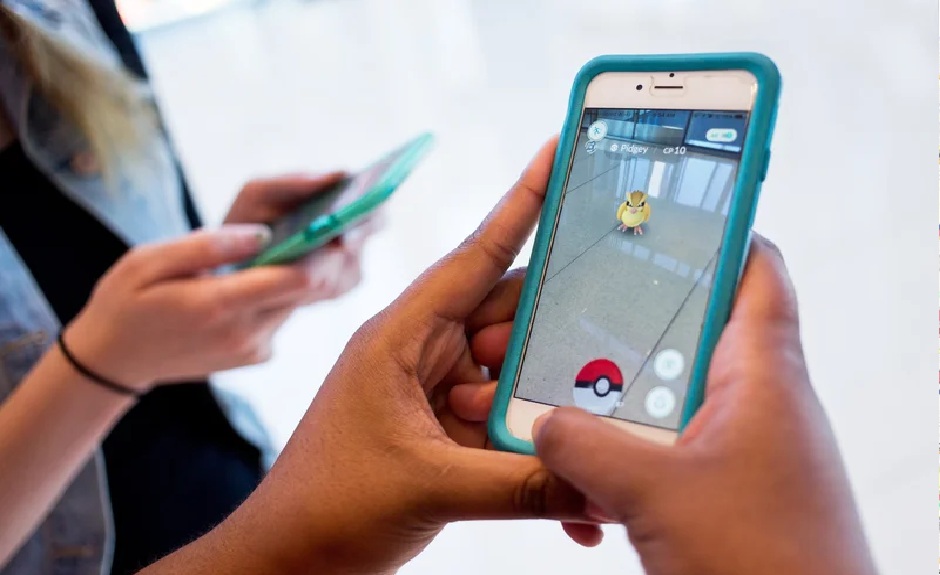
In the Pokémon GO community, “flying” is a popular slang term for GPS location spoofing—using a third-party tool to simulate virtual movement so you can catch Pokémon, spin PokéStops, and join raids around the world without leaving your home.
While flying opens up global gameplay, it directly violates Niantic’s Terms of Service and carries an inherent risk of account strikes or bans. There is no 100% anti-ban method. Understanding Pokémon GO spoofing risks is essential before starting.
To fly successfully, you need location-changing tools, but not all methods are created equal. Many players run into frustrating roadblocks like complex jailbreak or root requirements, or the dreaded Error 12 (“Failed to detect location”). This guide breaks down the realistic risks of flying and how to navigate iOS and Android setups as safely as possible.
The Core Risk: Modified Apps vs. Official App Tethering
When searching for ways to fly in Pokémon GO, you will likely encounter guides recommending modified game clients. While these apps are popular and easy to install, they rarely disclose the significantly higher detection and ban risks involved.
Niantic’s anti-cheat systems frequently scan for unauthorized signatures associated with altered game files. When you use a modified app, you are bypassing the official client entirely, making immediate signature-based detection highly probable. For example, understanding PGSharp features and limitations highlights the risks of using unofficial APKs. A safer—though still not risk-free—alternative is tethering the official Pokémon GO app to a separate location-controlling tool.
| Evaluation Criteria | Modified Game Clients (e.g., PGSharp, iPogo) | Official App Tethering (Bluetooth or Desktop) |
| App Type | Unofficial, altered third-party APK/IPA. | The official, unmodified Pokémon GO app downloaded from the App Store. |
| Ban Risk | High. Frequently caught in signature-based anti-cheat ban waves. | Lower. Avoids immediate modified-file detection, though behavior-based risks (like cooldown violations) remain. |
| Setup Complexity | Low. Simply download and play. | Moderate. Requires a computer connection or a secondary device acting as a Bluetooth bridge. |
Using the official app reduces immediate technical detection triggers, making tethered solutions a much safer baseline for accounts you care about.
The Golden Rule: Cooldowns and Realistic Movement
Even if you avoid modified apps, how you behave in-game matters just as much. The most critical behavioral rule when flying is cooldown management.
A cooldown is a mandatory waiting period based on the real-world distance you jump. To give you a concrete idea of what to expect, here are a few standard cooldown benchmarks:
- 1 to 5 km: 1 to 2 minutes
- 10 km: 7 minutes
- 100 km: 30 minutes
- 1500+ km: 2 hours (maximum cooldown)
If you teleport from New York to Tokyo, you cannot immediately catch a Pokémon or spin a PokéStop; you must wait the full two hours before interacting with the game. A reliable Pokémon GO cooldown chart can help you plan your jumps more precisely.
Keep these essential limitations in mind:
- Cooldowns are mandatory: Ignoring the cooldown timer and interacting with the game immediately after a long jump almost guarantees a “soft ban” (where Pokémon flee instantly and PokéStops yield no items).
- Realistic pacing matters: The cooldown timer is a crucial reminder, but limiting long-distance jumps and adopting realistic movement pacing (like walking or cycling speeds) is just as important.
- No absolute safety: Obeying cooldowns does not guarantee complete account safety, but violating them makes detection highly likely.
Treat cooldowns as a strict rule of engagement, not an anti-cheat evasion guarantee.
How to Fly on iOS: The Safer Bluetooth Bridge Method
Because iOS apps are heavily sandboxed, sideloading a modified Pokémon GO app on an iPhone triggers high ban risks. To prioritize account safety, Fonelora Location Changer uses a Dual Route strategy that lets iOS players use the official Pokémon GO app.
The most flexible method is the Android-to-iOS Bluetooth Bridge. This setup uses Fonelora Go running on a standalone Android device as a remote controller for your iOS device, which runs the unmodified game.
How to Set Up the iOS Bluetooth Bridge Workflow
Prerequisite: You need one Android device (to act as the controller) and one iOS device (to run the official game).
- Prepare the Android Controller: Install the Fonelora Go mobile app on your Android device.
- Prepare the iOS Game Device: Ensure your iPhone or iPad has the official Pokémon GO app installed. Connect the iOS device to Wi-Fi or a mobile hotspot.
- Configure DNS: Follow the on-screen instructions in Fonelora Go to complete the required DNS configuration on your iOS device.
- Pair via Bluetooth: Use Fonelora Go on the Android device to connect to your iOS device via Bluetooth.
- Start Flying: Once connected, use the map, joystick, or route simulation on the Android device to securely change the GPS location of the official app on your iOS device.
Desktop Alternative: If you do not have an Android device, you can explore other Pokémon GO location-changing workflows like Desktop Game Mode targeting iOS. This requires connecting your iPhone to a PC or Mac, completing a similar Bluetooth/DNS setup, and controlling your movement directly from your computer.
How to Fly on Android: Standalone and Tethered Options
Android devices handle location spoofing differently than iOS, so the workflow is completely separate. For Android users, Fonelora Location Changer offers both mobile-only and desktop-tethered options for GPS spoofing on Android.
Option 1: Mobile-Only (Fonelora Go on Android)
If you want to fly directly from your Android phone without a computer, you can use the standalone Fonelora Go app.
Prerequisite: This method requires downloading a supported customized game package through the Fonelora app, as it does not use the official Pokémon GO app directly on Android.
- Install Fonelora Go: Download and set up the Fonelora Go app on your Android device.
- Download the Custom Package: Use the app to download the supported customized Pokémon GO package.
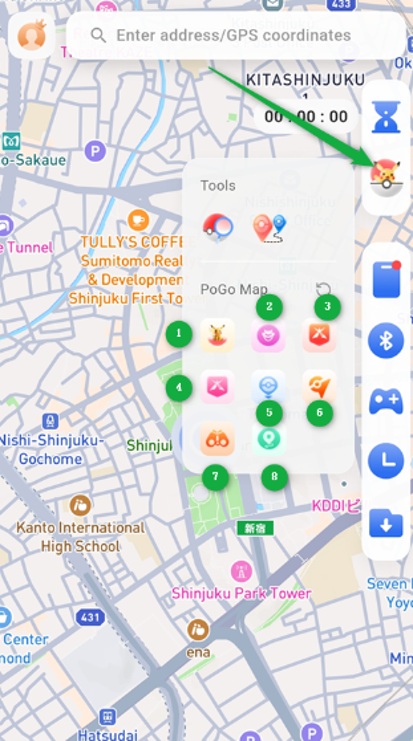
Check Pokemon Go Resources
- Disable Power-Saving: Turn off your Android device’s power-saving or battery optimization features to prevent background location drops.
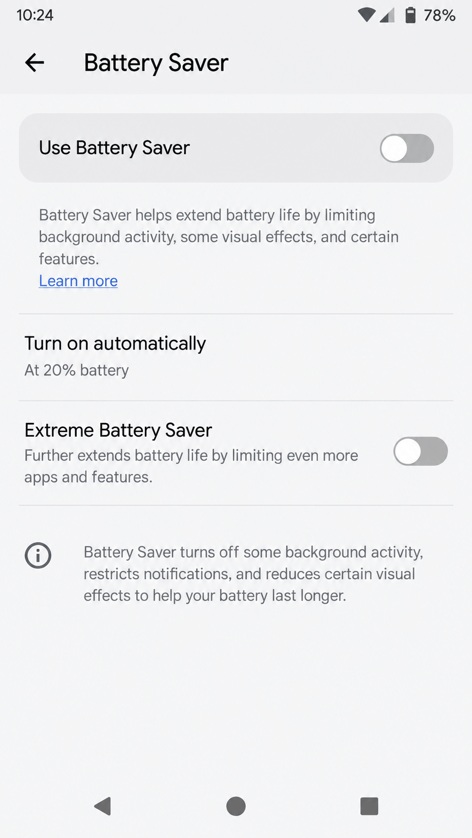
Disable Power-Saving
- Connect and Move: Select the game within Fonelora Go, connect, and use the on-screen joystick or map to teleport and simulate movement.
Option 2: Desktop Game Mode (USB / Wi-Fi)
If you prefer playing from your desk or want to utilize a larger screen for route planning, you can tether your phone to a computer.
- Open the Desktop Client: Launch Fonelora Location Changer on your Windows or Mac.
- Connect the Device: Connect your mobile device via USB (or Wi-Fi after initial setup) and follow the prompts to enable USB debugging.
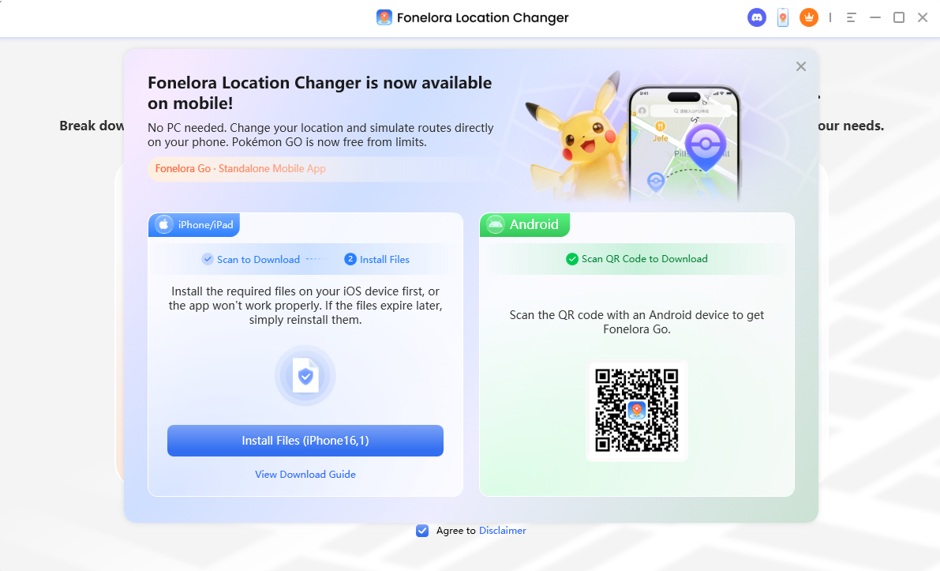
Connect the Device to Enable Device
- Select Game Mode: Choose the Game Mode and follow the on-screen instructions to load the supported environment.
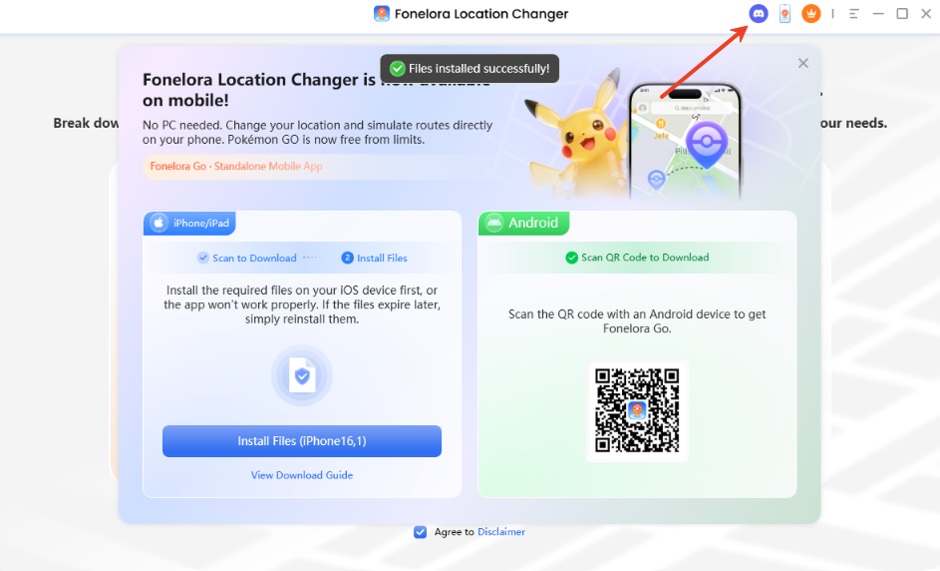
Select Game Mode
- Control Movement: Use your desktop mouse or keyboard to dictate your in-game movement.
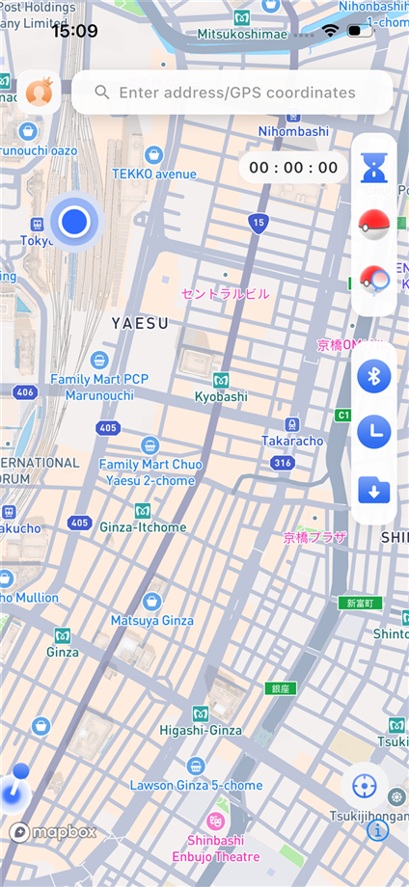
Begin to Control Movement
Finding Resources Without External Maps
One of the most frustrating aspects of flying is constantly switching between your game screen and clunky external resource maps just to find a 100 IV Pokémon, locate an active raid, or track down a Gym.
To solve this, the desktop version of Fonelora Location Changer includes a built-in Pokémon GO Resource Radar.
Instead of hunting down coordinates on a third-party website, you can discover resources directly within the desktop client interface:
- Advanced Filtering: Search for specific Pokémon by name, Pokédex number, CP, or level. Use the IV 100 filter to hunt down perfect stats.
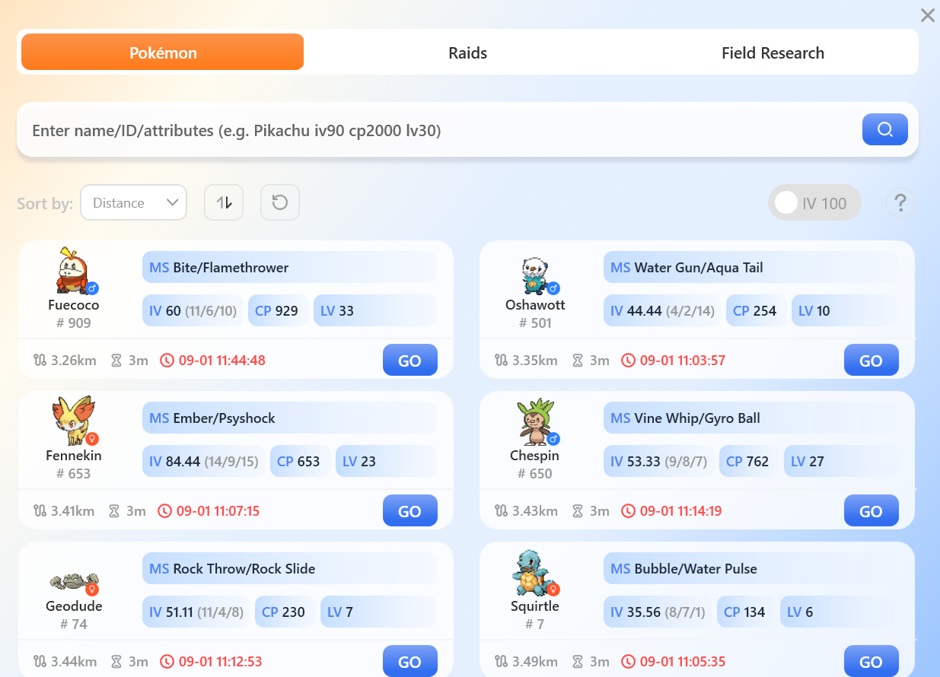
Enable IV 100 Search
- Live Raid and Gym Data: View active raids, countdowns, and Gym locations to plan your jumps.
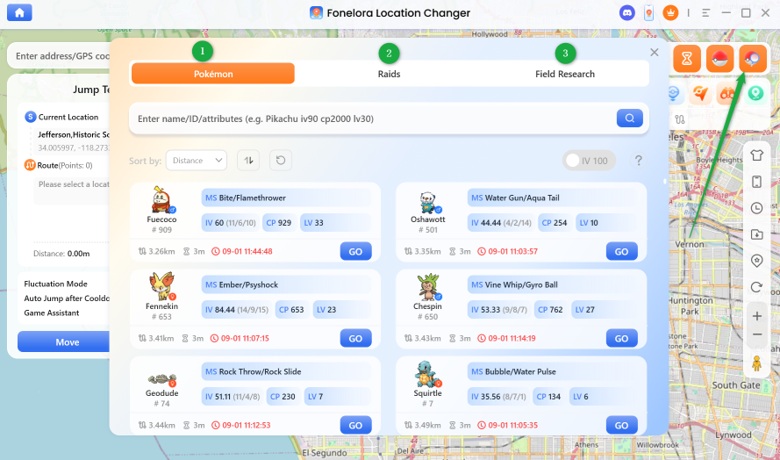
View Different Activities
- Resource Route Planning: The desktop client can connect currently displayed resource points into a route, sending them directly to Multi-Spot Mode for easy movement simulation.
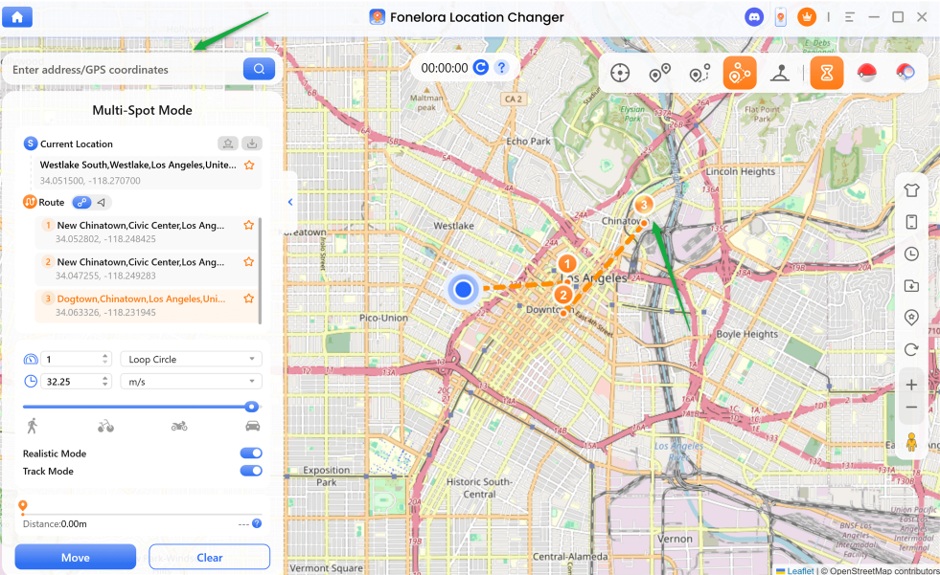
Resource Route Planning
- One-Click Go: Once you find a resource card, simply click “Go” to load the coordinates into Teleport Mode.
Note on Availability: The desktop Pokémon GO resource radar requires a paid game-resource entitlement. You can explore Fonelora’s location controls to check the applicable license and feature entitlements. Coverage depends entirely on available live data in the area, and time-limited resources (like raids) may expire before you arrive. It does not automate catching or complete battles for you.
Troubleshooting Error 12 (Failed to detect location)
Encountering Error 12 (Failed to detect location) can be alarming, but it is important to understand that Error 12 is a location detection failure, not a permanent account ban. It simply means Niantic’s servers have detected a location mismatch or blocked a mock location signal (similar to a Pokémon GO GPS signal not found scenario, but tied directly to spoofing attempts).
If Error 12 stops your gameplay while flying, check these common causes and fixes:
1. Check iOS Bluetooth Bridge DNS Settings
Symptom: Error 12 appears immediately upon opening the official app via the iOS Bluetooth bridge.
Fix: Verify that the required DNS configuration has been properly applied to your iOS device’s Wi-Fi network. If your network changes, the DNS setting may need to be reapplied.
2. Verify Android Mock Location / Developer Settings
Symptom: Location snaps back to real life or Error 12 triggers upon teleporting.
Fix: Ensure Fonelora Go is correctly selected as the mock location app in your Android Developer Options. Make sure power-saving or battery optimization modes are completely disabled, as they can kill background location processes.
3. Check Network Stability
Symptom: Game loads the map but characters won’t spawn, followed by Error 12.
Fix: A fluctuating Wi-Fi or mobile hotspot connection can disrupt the GPS signal bridge. Ensure both your game device and controller device have strong, stable internet connections.
A Realistic Note on Detection: Niantic continuously updates its anti-cheat detection methods. Because of this, permanent elimination of Error 12 cannot be guaranteed by any tool on the market. If you repeatedly encounter Error 12 despite troubleshooting, stop flying temporarily to protect your account.
Final Thoughts: Fly Smarter, Not Harder
Flying in Pokémon GO allows you to access distant raids and catch region-exclusive Pokémon, but it always carries inherent risks. The key takeaway is that avoiding modified game clients on iOS drastically reduces your chances of immediate, signature-based detection.
By choosing a Dual Route strategy like Fonelora Location Changer, you gain access to powerful tools tailored to your specific setup. Whether you want the mobile flexibility of the Android-to-iOS Bluetooth bridge—which lets you play safely on the official app—or the robust desktop resource radar to find Pokémon without constantly checking external maps, you can customize your gameplay to fit your needs.