

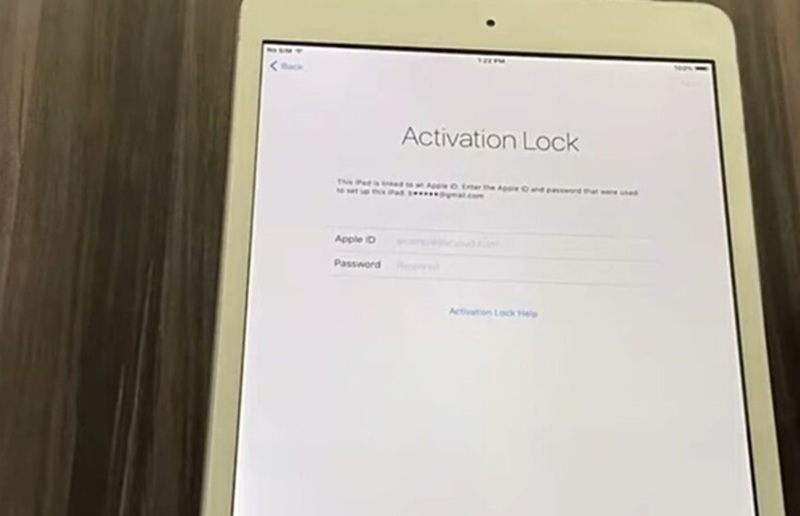
It is possible to bypass the Remote Management screen on an iPad without the administrator password using specialized desktop software, provided you are an authorized user. However, it is crucial to set realistic expectations: desktop software performs a local bypass on the device itself. It does not permanently remove the iPad from the organization’s Apple Business Manager or Apple School Manager servers.
The exact method you need depends entirely on your current situation. You must first determine whether your device is stuck in the initial setup screen or simply has a local MDM profile installed on an otherwise accessible iPad.
Identify Your Lock State: Setup Screen vs. Local MDM Profile
Before attempting any bypass method, you must identify your iPad’s exact lock state. The term “MDM lock” usually refers to one of two very different situations: being locked out during the initial setup, or being restricted while using an already activated device.
| Feature | Remote Management Setup Screen | Local MDM Profile |
| Device State | Factory erased; forcing enrollment during the initial iOS setup process. | Activated and accessible; restricted by a downloaded profile in Settings. |
| Accessibility | You cannot use the iPad at all until the setup screen is bypassed. | You can use the iPad, but certain features, apps, or settings are restricted. |
| Data Impact | Bypassing the setup screen means starting fresh, as the device is already erased. | Removing a local MDM profile preserves your existing local data, photos, and messages. |
Knowing which state applies to your device ensures you choose the correct removal method and fully understand how your existing data is affected.
The Official Route: Contacting the IT Administrator
The intended, official way to remove remote management from an iPad is for the original IT administrator to release the device from their server. When an organization retires a device, they log into their Apple portal and unassign the iPad. This is the only 100% permanent solution that survives a factory reset.
However, this presents a massive hurdle for many authorized owners. If you legitimately purchased a retired company or school iPad from a third-party seller, you might find it impossible to reach the old IT department. Without their intervention, permanent server-side removal is not possible, leaving a local desktop software bypass as the only practical workaround.
Prerequisites and Limitations for Software Bypass
If you cannot contact the IT administrator, you can use desktop software to bypass the restriction locally. Before proceeding, review these critical prerequisites and limitations to ensure your device is eligible:
- Explicit Authorization: You must be the legitimate owner or an authorized user of the device. MDM bypass tools are not meant to defeat legitimate employer controls on unauthorized devices.
- Find My Must Be Turned Off: This is a strict technical requirement. If “Find My” is enabled on the iPad, the MDM bypass workflow cannot proceed.
- Temporary Nature (Post-Bypass Limitation): Because the bypass is local, factory resetting the iPad in the future will usually trigger the Remote Management setup screen again. You will need to re-apply the bypass if you reset the device.
- Device Access: You will need a computer (Mac or PC) and a stable, data-capable USB connection to perform the process.
How to Bypass MDM on iPad Using Fonelora iPhone Unlocker
If you meet the prerequisites and have an authorized device, Fonelora iPhone Unlocker provides a guided desktop workflow to regain access to your iPad. The software is designed to handle both distinct lock states: to bypass the Remote Management screen during setup, and to remove a local MDM profile on an accessible device.
Here is how the guided workflow operates:
- Open the Software: Launch Fonelora iPhone Unlocker on your Mac or PC and select the “Bypass MDM” module.
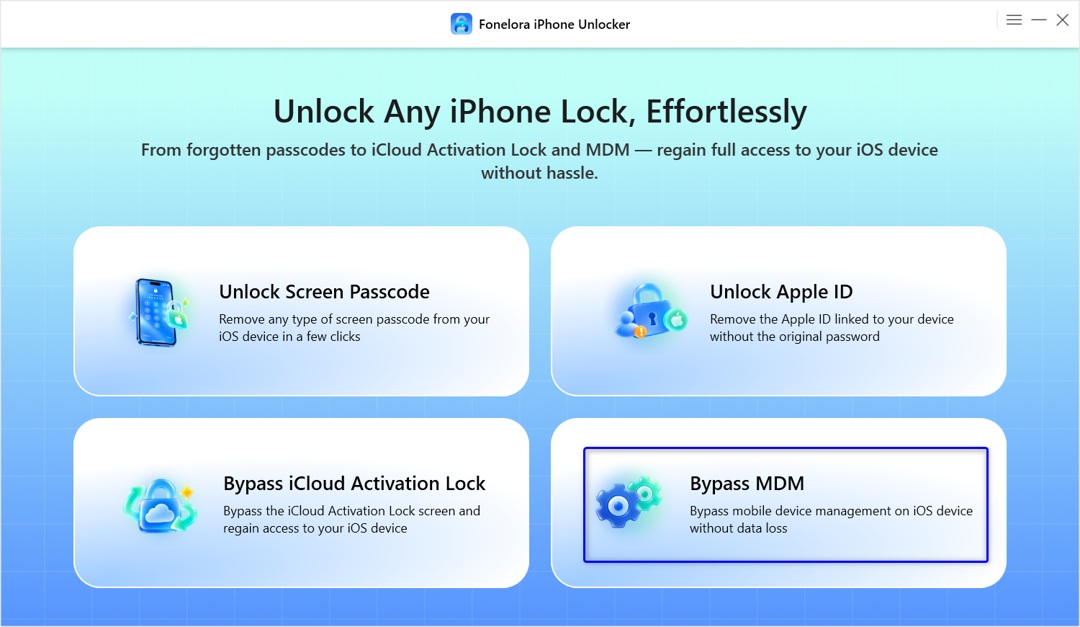
Select Bypass MDM Module
- Connect Your iPad: Use a stable, data-capable USB cable to connect your iPad to the computer.
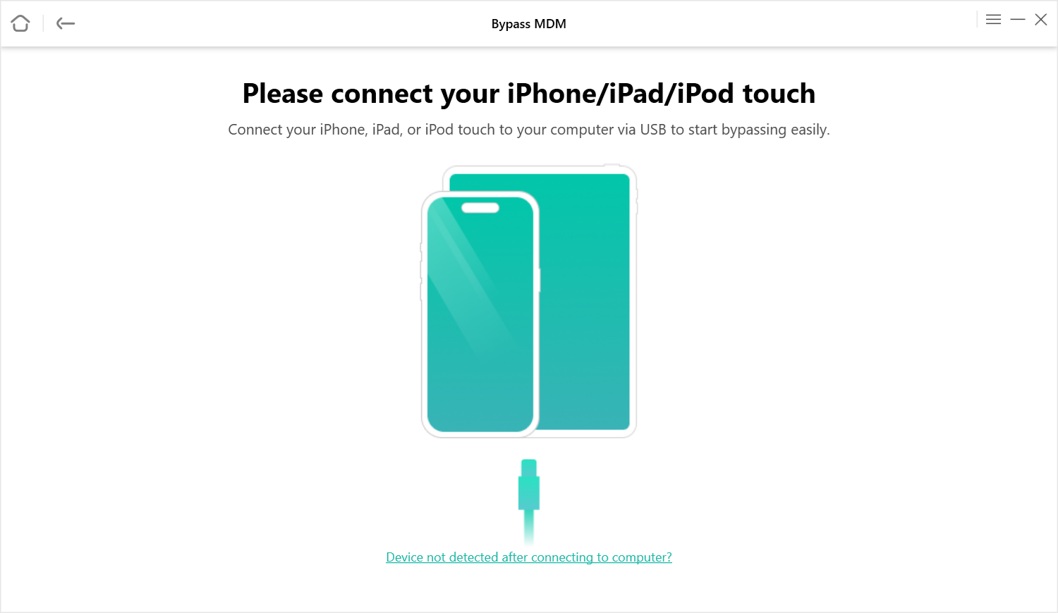
Connect Your iPad
- Confirm Prerequisites: Ensure that “Find My” is turned off on the device, as required by the software for this specific module.
- Initiate the Bypass: Follow the specific on-screen prompts to match your exact lock state. The software interface will guide you to select the appropriate path depending on whether your iPad is stuck on the Remote Management setup screen or restricted by a downloaded local profile.
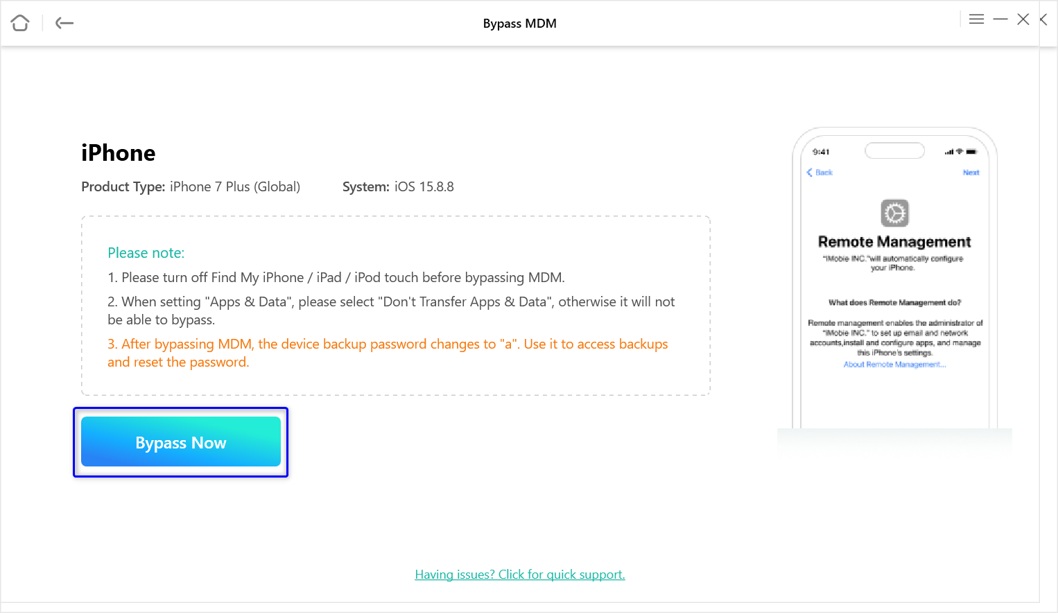
Begin to Bypass your device
- Complete the Setup: Once the bypass is complete, your device will restart.
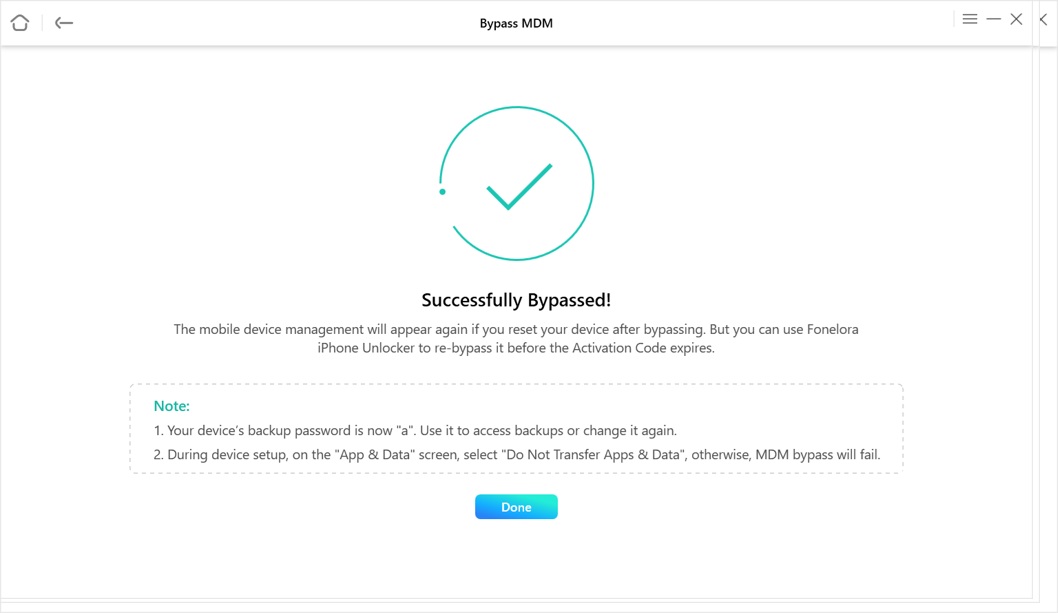
Bypass Successfully
Remember the data preservation rule: removing a local MDM profile keeps your existing local data intact, while bypassing the Remote Management screen implies the device was already erased prior to the lock.
Frequently Asked Questions About iPad MDM Bypass
Will factory resetting my iPad remove MDM?
No. A factory reset usually triggers the Remote Management screen again unless the IT administrator has permanently removed the device from their organization’s Apple server.
Does bypassing MDM delete my data?
It depends on your lock state. Removing a local MDM profile from an activated device preserves your existing data. Bypassing the Remote Management setup screen is done on a device that is already factory erased.
Will the remote management lock come back after an iOS update or restore?
Standard iOS updates are generally safe and will not bring the lock back. However, restoring or factory resetting the device will trigger the setup lock again.
Do I need to jailbreak my iPad to bypass MDM?
No. Standard MDM bypass workflows, including those used by major desktop tools, do not require you to jailbreak your iPad.
What is the difference between Remote Management and Activation Lock?
Remote Management is an organizational control requiring an IT admin login. iCloud Activation Lock is an Apple anti-theft feature requiring the previous owner’s Apple ID. Tools that bypass MDM do not automatically bypass Activation Lock. If you see an Apple ID prompt, you must understand the Locked to Owner screen and its specific requirements.
Final Thoughts on iPad Remote Management
Dealing with an iPad restricted by Remote Management can be incredibly frustrating, especially if you legitimately purchased a retired device. While contacting the original IT administrator is the only way to achieve a permanent, server-side removal, desktop bypass tools offer a highly practical local workaround for authorized owners.
Before taking action, ensure you correctly identify whether you are bypassing a setup screen or removing a local profile, as this dictates your data preservation. If you meet the requirement of having “Find My” turned off and need a clear, guided solution to regain immediate access to your authorized iPad, check license options and download the software to bypass the restriction today.