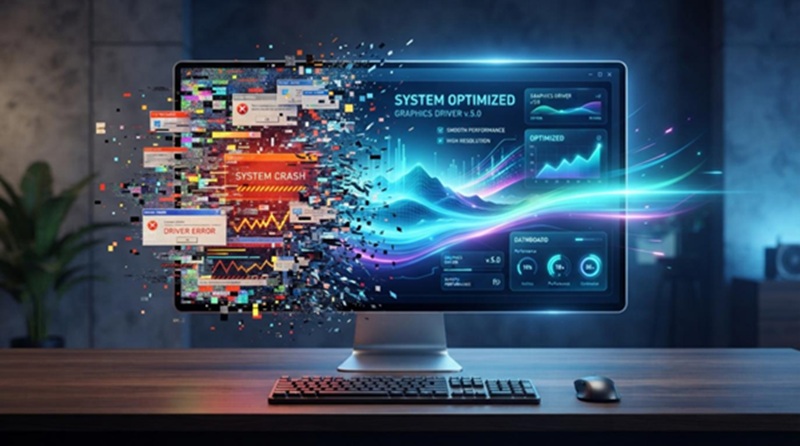
Outdated graphics drivers may be responsible if your system experiences crashes, slow performance, or black screens, just like me. Driver updates help our system run smoothly by improving performance and stability while avoiding display issues. This guide explores graphics drivers, common issues, warning signs, update options, and the use of a reliable driver updater to improve system performance.
What Are Graphics Drivers? Common Causes of System Freezes and Crashes
Graphics drivers enable the computer to send display commands to the graphics card. They provide smooth display output, improved gaming performance, and correct functioning of multimedia and 3D applications. Simply put, it converts application requests into GPU-readable commands.
5 Signs: Graphics Drivers Need an Update
I found there are five clear signs that my graphics drivers may need an update.
Frequent crashes or low FPS: Outdated drivers can cause lag and repeated game crashes.
Screen flickering or artifacts: Poor driver communication can cause flickering, tearing, or visual glitches.
Windows Update issues: Corrupted drivers can cause updates to fail or get stuck.
Freezes after sleep: The system may show a black or frozen screen when the driver fails to restart.
Display driver errors: Messages like “Display driver stopped responding” indicate driver instability.
Common Causes of System Freezes and Crashes:
To figure out the causes of system freezes, I searched a lot and finally learned that graphics-related problems—such as black screens, blue screens (BSOD), or app crashes—are often caused by several factors. These include:
- Outdated or corrupted drivers: These can cause system instability and errors.
- Overheating (thermal issues): Poor airflow or dust buildup can cause the GPU to overheat and fail under load.
- Insufficient power (PSU issues): A weak or failing power supply may not deliver stable power under heavy graphics loads.
- Driver conflicts and bugs: Certain driver versions may cause bugs or conflicts with system updates (such as Windows 11) or other software.
- Unstable overclocking: Running the GPU at speeds beyond safe limits can cause crashes and instability.
- Hardware problems: Faulty components (such as RAM or a GPU) or incorrect cable connections (e.g., using the wrong DisplayPort cable) can also trigger issues.
Different Methods – How to Update Graphics Drivers
Keeping my graphics drivers up-to-date, which is essential for smooth performance and system stability. Here are different methods I tried to update my graphics drivers easily and effectively.?
Best Way I Found – Using IObit Driver Booster 13 Free

Dependable as they are, Device Manager and official websites may still require manual driver updates that take additional time and effort. An automated solution is more convenient. For this, Driver Booster stands out as an efficient tool that simplifies updates and improves system stability and performance.
IObit Driver Booster 13 Free makes updating outdated graphics drivers easy with a fast one-click process. It ensures driver safety by creating backups and choosing stable versions for installation. With real-time monitoring and easy automation, it simplifies driver management while improving system stability, performance, and overall reliability.
Key Features for IObit Driver Booster 13 Free
- Supports a database of 12+ million drivers.
- Uses WHQL-tested and verified drivers.
- Prioritizes graphics and gaming updates.
- Fixes network driver issues with built-in tools.
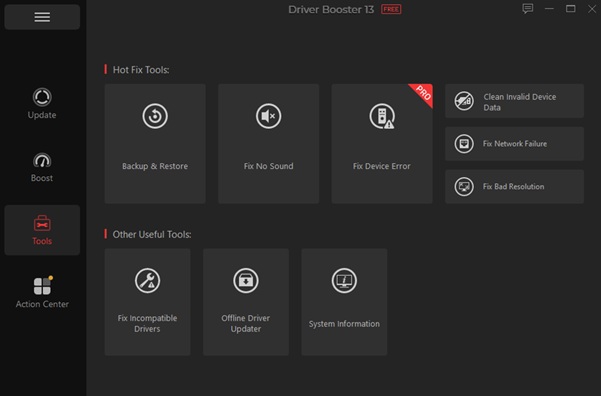
- Supports offline driver installation.
Step-by-step guide: I updated graphics drivers with IObit Driver Booster 13 Free
Step 1. Download Driver Booster from the official IObit website.
Step 2. Install the program by running the setup file and following the on-screen instructions.
Step 3. Launch Driver Booster. The main dashboard will automatically start scanning my PC.
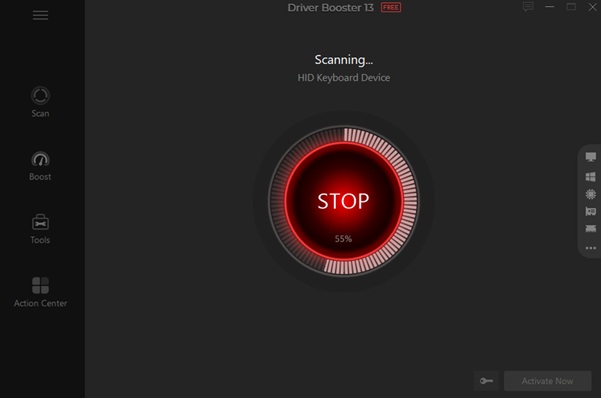
Note: Wait for 20-30 seconds while it identifies all outdated, missing, or faulty drivers.
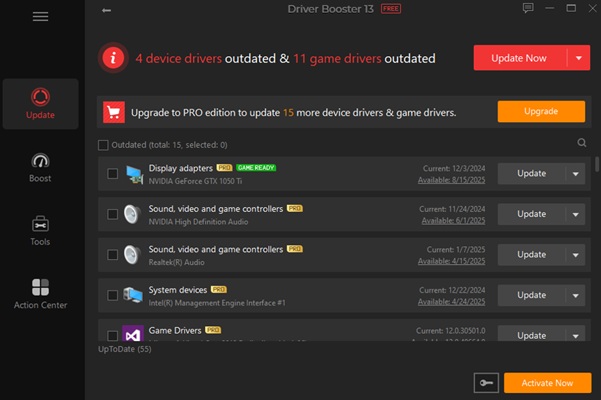
Step 4. And, I look for my graphics drivers in the scan results. I click the red “Update” button next to the graphics driver.
Download Drivers from Official Websites
Downloading drivers from official websites such as NVIDIA, AMD, or Intel is a reliable way to stay up to date. These sources provide the latest drivers with performance improvements, bug fixes, and “Game Ready” updates. They are also secure and malware-free. However, this method requires manual effort, such as identifying the GPU model and operating system.
Here’s how to download drivers from official websites.
Step 1. Open Device Manager > expand Display adapters > note the exact GPU model (e.g., NVIDIA GeForce RTX 3060 or AMD Radeon RX 6600).
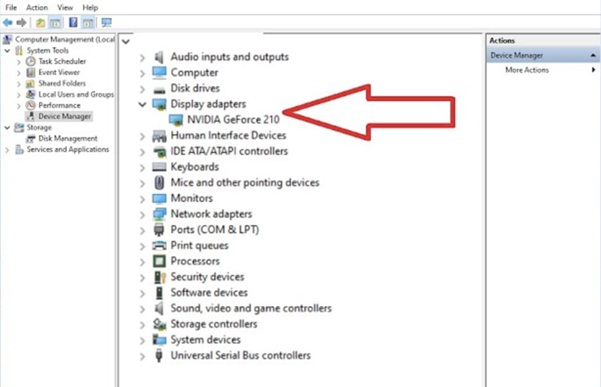
Step 2. Go to the correct site based on the GPU brand—NVIDIA, AMD, or Intel.
Step 3. Use the site’s search, auto-detection tool, or manually input my GPU model and Windows version to find the right driver.
Step 4. Choose the most recent stable version (not beta, unless needed).
Step 5. Run the installer and select Clean Installation (if available) to remove old or conflicting files.
Step 6. Reboot the system to apply changes and ensure everything works properly.
Using Windows Device Manager
Most hardware drivers, including graphics cards and printers, are updated automatically by Windows Update. These drivers are stable but may not always be the latest versions, as reliability is prioritized. Newer updates may appear under “Optional Updates.”
Device Manager provides more control, enabling manual or automatic updates, hardware scans, rollbacks, and driver reinstallation for troubleshooting.
Here’s how to update graphics drivers using Device Manager.
Step 1. Press Windows Key + X and select Device Manager from the menu, or search for it in the Start menu.
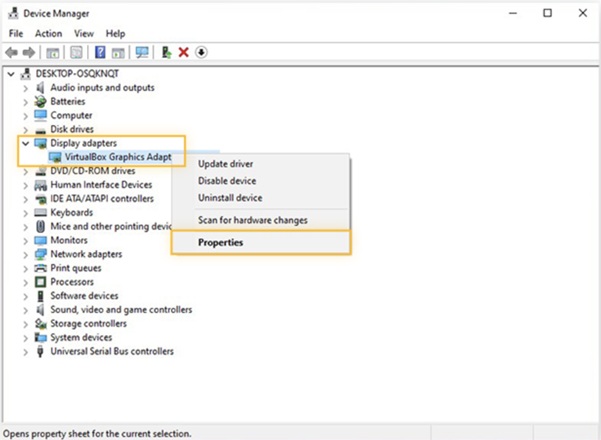
Step 2. Expand the Display adapters section to find the graphics card (e.g., NVIDIA, AMD, or Intel).
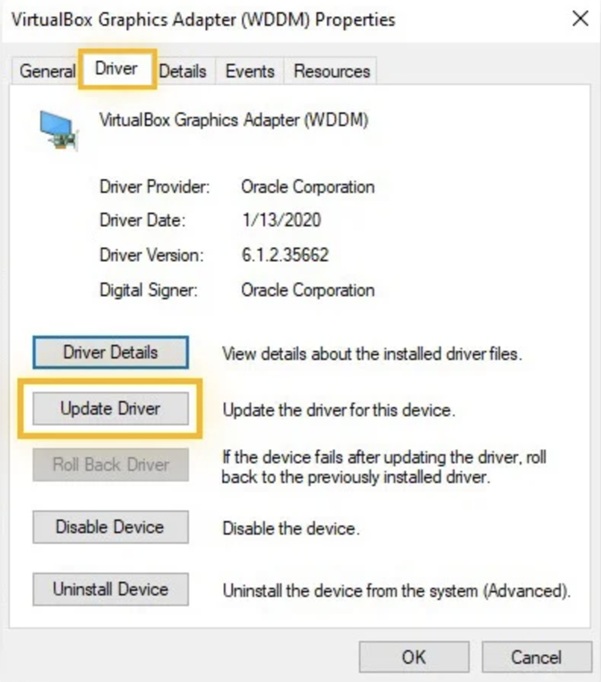
Step 3. Right-click the graphics card name, then select Update driver.
Step 4. Choose Search automatically for drivers to have Windows scan the computer and the internet for the best available driver.
Step 5. If an update is found, it will install automatically. If not, Windows will inform me that the best drivers are already installed.
Most Important Tips to Improve System Stability
Keeping my system stable requires more than just updating drivers—it involves a few smart maintenance habits. Here are some important tips to help improve overall system stability and performance.
- Perform a clean driver installation: It eliminates corrupted or outdated drivers to support stable, efficient system operation.
- Disable auto driver updates: Prevents Windows from replacing stable drivers.
- Monitor GPU temperature: Keep it below 85°C to avoid overheating.
- Update other drivers: Keep chipset, audio, and network drivers up to date.
- Create a restore point: Allows easy rollback if problems occur.
Conclusion
Installing the latest graphics drivers is important for maintaining stable and reliable system performance. Ongoing updates are important for better stability, bug fixes, and smoother performance. Manual updates work, but using Driver Booster simplifies and speeds up the entire process. I will never let outdated drivers slow me down again—update regularly and use Driver Booster to keep my system running smoothly and efficiently.
Like this:
Like Loading...