

Extension of software ought to be easy; however, as a Windows user, sometimes I inevitably end up with software that just won’t go away. Others show errors on removal; others are successful in removing, but leave behind folders, registry items, start-up tasks and other parts. These remnants can take up space, cause software conflicts and complicate long-term maintenance.
The programs typically do not remove properly due to partially installed programs, damaged registry entries, running background programs and corrupt uninstall files. Luckily, there are most of the time ways of eliminating an application without reinstalling Windows. The next five fixes deal with and prevent the most common reasons for software not to be removed. With the help of IObit Uninstaller, the following five fixes I tried prevent unwanted software from being removed due to common reasons.
Fix #1: Start With the Windows Built-In Uninstaller
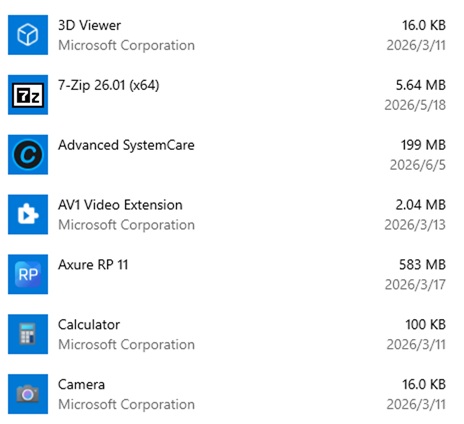
Always use the program’s own uninstaller for Windows Settings, Control Panel, as well as in the program itself, before implementing sophisticated solutions. If the program’s uninstall files, including those found in Add or Remove Programs, still exist, it is usually possible to remove them with standard procedures and then uninstall them, which can resolve many uninstall issues.
Shut the app completely and make sure that the app’s background processes are not working before starting. Active processes can lock files and thus block a proper removal of the files by the Windows OS. Should this be necessary, use the Task Manager to stop any related tasks that are running before uninstalling.
Fix #2: Use IObit Uninstaller for a 100% Uninstall
Once removed, open IObit Uninstaller and check the list of “All Programs” and ensure that the application is not listed there anymore. This is a confirmation step to ensure that while some uninstallers will only delete the base application, others will leave other supporting files behind. Check if the uninstaller ran successfully, and determine if further cleanup needs to be done.
While the typical uninstaller may work in many cases, the files, logs and temporary files may remain on the system. Such remainders do not have to cause immediate problems, but they can really take up a lot of disk space over time.
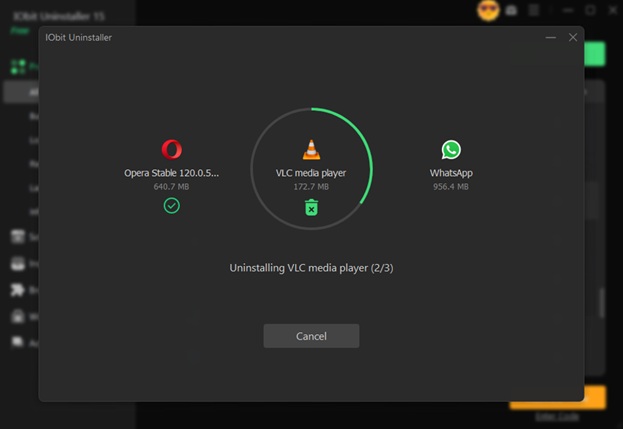
Bad! I found three programs that weren’t completely removed via the default uninstaller. Luckily, I can use IObit Uninstaller to remove it thoroughly from my PC. It’s simple for bulk uninstalls! Just tick these three programs and click the Uninstall button in the top right corner. Then this uninstaller can automatically remove it, including logs and temporary files.
Fix #3: Stubborn Programs by using Force Removal
Force Uninstall is one of the most useful features, I think, in IObit Uninstaller. It is designed to remove over 4,000 complex-to-uninstall programs, corrupted, or partially uninstalled programs that Windows cannot remove through the normal uninstall process.
When Do I Use Force Uninstall? I usually use Force Uninstall when:
- A program displays an error like “Uninstaller not found.”
- The software still appears in the installed programs list after removal.
- A broken application cannot be removed through Windows Settings.
- I manually deleted a program folder but leftover entries remain.
- Malware-like or unwanted software refuses to uninstall normally.
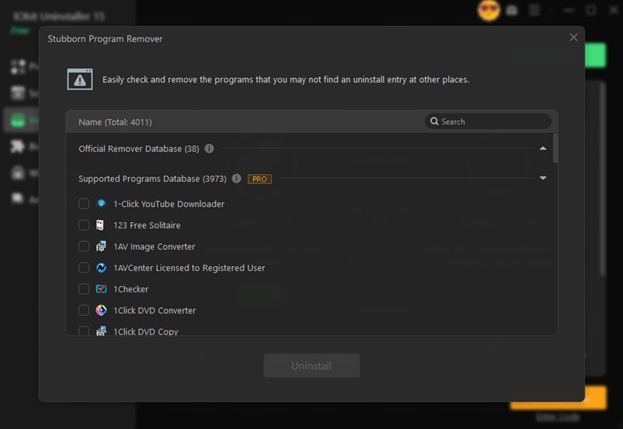
How does the Force Uninstall work for me? The feature generally follows these steps:
- Open this uninstaller form Windows.
- Locate the stubborn program.
- Right-click the application or select Force Uninstall.
- If the program is not listed, I can drag its installation folder or executable file into the Force Uninstall window.
- The software scans for:
Program files
Leftover folders
Registry entries
Shortcuts
Related system traces
- Review the results and confirm removal.
After the cleanup, the program and its leftovers are deleted as completely as possible.
Fix #4: Remove Browser Extensions and Unwanted Windows Apps
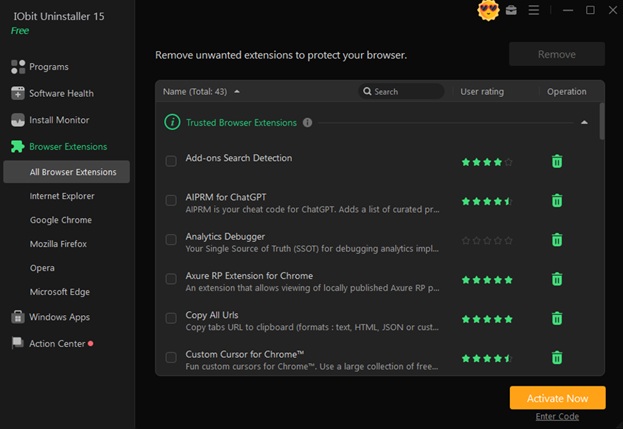
Not all software uninstallation issues can be considered conventional desktop software issues. Extensions or Windows applications can also make cleanup easy and be difficult to delete if they make changes to your settings, reinstall themselves or run in the background.
Browser extensions are worthy of special mention, as they may impact not only performance but also security. Extensions that aren’t used can eat up resources, drag down browser performance, and present privacy issues. It’s a good idea to remove extensions that are not needed so you do not have an excess of background activity.
Similar problems can occur with Windows apps. All those systems keep adding applications which are only rarely used but keep eating up storage space and system resources. Regularly checking installed software helps identify software that is no longer of benefit.
Normally, you have to open each browser separately and uninstall extensions one by one. With IObit Uninstaller, you can view and remove extensions from different browsers through a single interface, which saves time and helps identify suspicious add-ons.
Fix #5: Monitor Software Installations Before Problems Occur
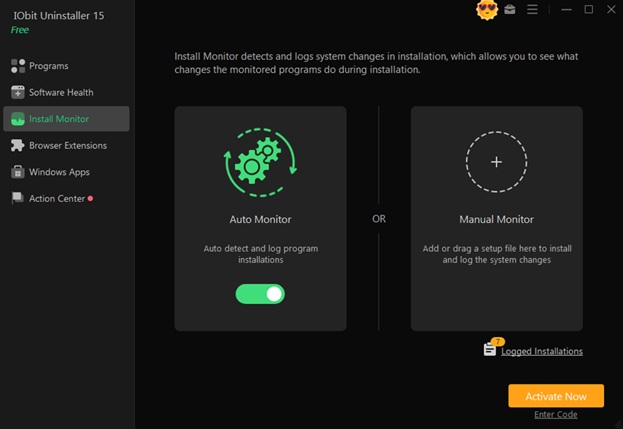
The best way to avoid problems with the software from being uninstalled later is to keep track of software installs from the outset. There are more often than not installers that make applications start-up items, Services that run, Scheduled Tasks, Registry Keys, Entries… all extras of the application’s primary folder.
If a record of these changes is not on file, it may be challenging later to completely remove the items. The installation monitoring tools overcome this issue, keeping a track of changes in the installation procedure. When this software becomes showtime, these records help in finding the components and getting rid of them.
This works well for a larger program or utility that has a significant impact on the operating system. I do not have to look for any files leftover from their installation, as records are there to help with the cleanup process.
While it might appear unnecessary at this time, tracking installations can vastly simplify software management and decrease the chances of overwrought software in the future.
Conclusion
Removal programs that don’t remove can be frustrating; the majority of removal problems have practical remedies. As usual, common software removal strategies and practices, such as using standard software removal, removing remaining files, monitoring software removal, removing unwanted software extensions, and forcing software removal, can resolve most software removal issues.
These 5 fixes will get back some storage space, fix software conflicts and keep your Windows environment cleaner. For exceptionally problematic applications that don’t get removed easily, I highly recommend the dedicated tools like IObit Uninstaller that can enable the removal of software in a safe and complete manner.