

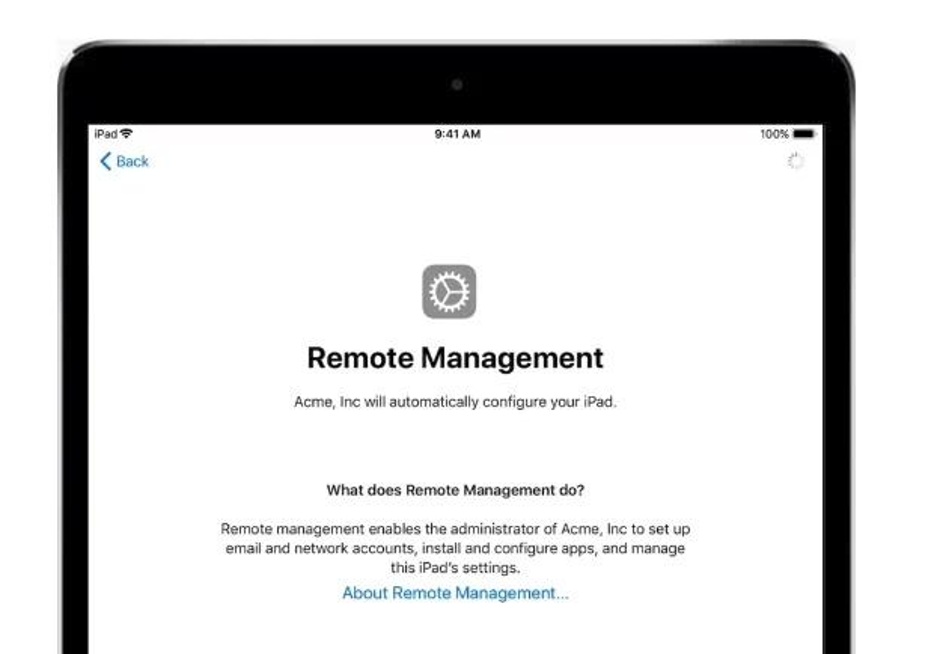
Being restricted by the Remote Management error on an iPhone or iPad can be frustrating for any iOS user. But the best part is that there are multiple solutions for how to bypass MDM from iPhone, even on the latest iOS 27.
Mobile Device Management (MDM) itself is a great solution for companies to prevent unrestricted access, but it can be a serious nuisance for people who have bought a used device. So, whether you are stuck on an MDM screen due to incorrect login information or other mismatched configurations, you’ll find this guide useful to bypass MDM.
Part 1. Before You Bypass MDM on iOS 27: Identify Your Management Type
MDM lock is not a one-size-fits-all type of lock. It means different types of device management, so the first step in how to remove MDM is to identify the exact management type on your iOS 27.
Here are the key MDM types:
- Locally Installed Management Profile: This type of MDM profile appears under Settings.
- Setup Assistant Requires Remote Management: User has to enroll in MDM
- Supervised Profile: It means the device (iPhone/iPad) is supervised by an organization
- MDM Profile With No Remove Management Option: MDM removal methods are restricted on such profiles, and you have to go through MDM bypass methods.
Identifying the right management type is important to choose the right method of removing a local profile, bypassing a setup screen, or handling an organization-side lock.
Part 2. How to Bypass MDM from iPhone on iOS 27
Choosing the best way to remove MDM from iPhone is dependent on profile-removal permissions, administrator access, device state, and the management type you are dealing with. Let’s go through different methods and tools to bypass MDM:
Method 1. Bypass MDM on iOS 27 with 4uKey
Tenorshare 4uKey is a perfect solution for users looking for a desktop solution to bypass remote management MDM screens. It has a wide range of iPhone and iPad unlocking features, including a specific bypass MDM feature.
Most importantly, 4uKey supports the latest iOS 27 and iPadOS 27. The process also does not erase your data from the devices, so you can easily remove MDM without the fear of losing your data.
How to Use 4uKey to Bypass MDM?
Here are the steps of the MDM bypass feature in 4uKey:
- Download and install 4uKey on your computer.
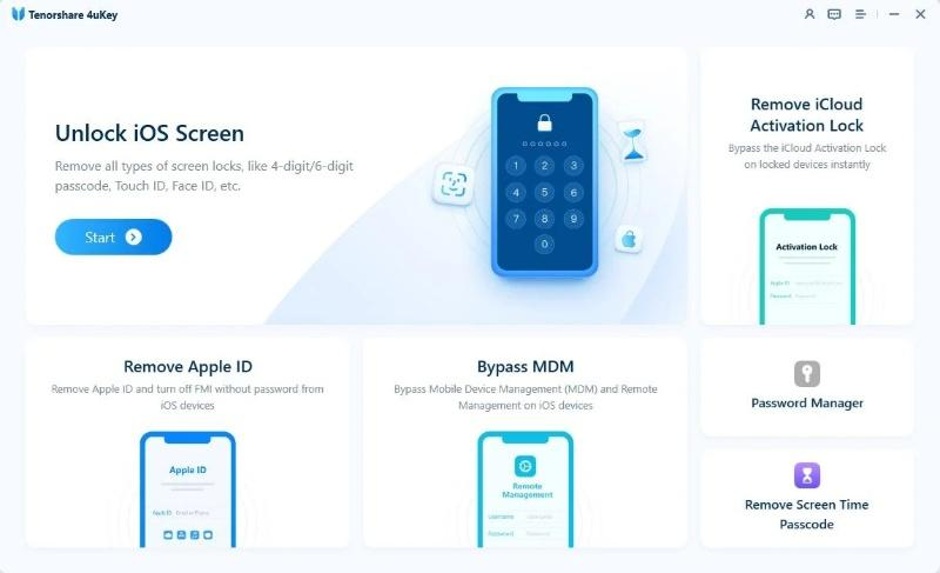
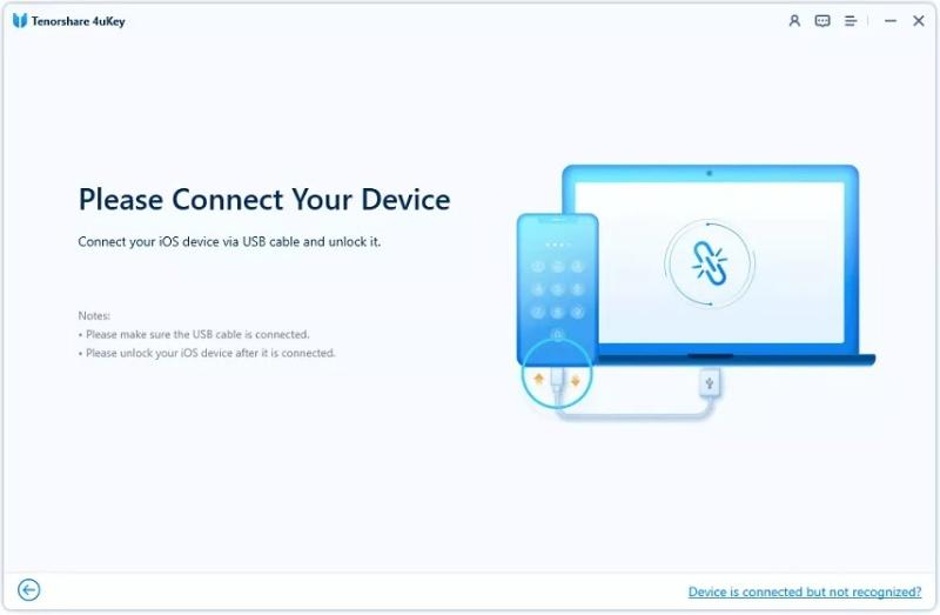
- Connect your iPhone or iPad to the computer.
- 4uKey has a dedicated screen and feature to bypass MDM. Open it and click the Start button.
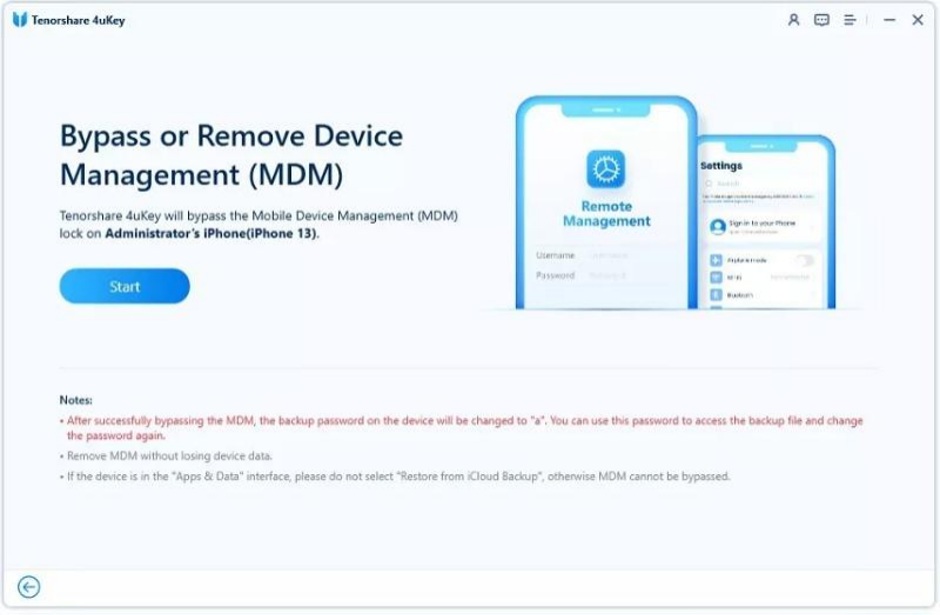
- Wait for the MDM bypassing process to complete
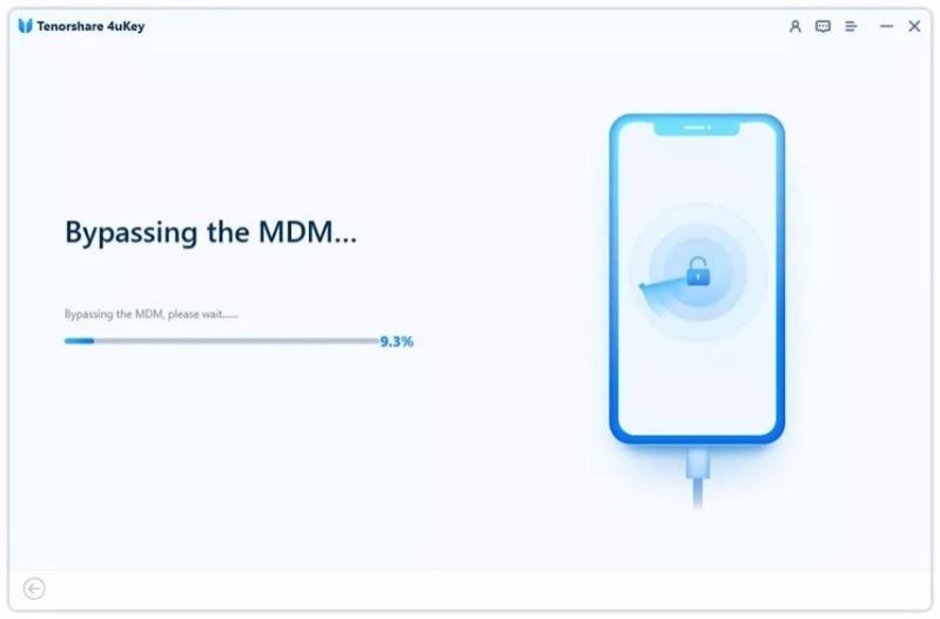
- You’ll get the confirmation that you’ve successfully bypassed MDM on your iOS 27.
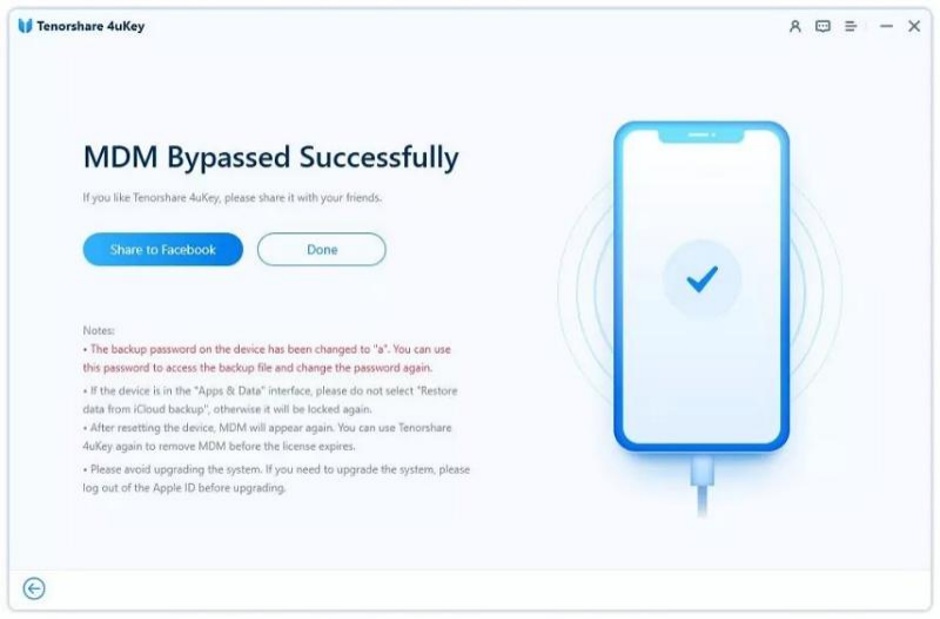
Overall, 4uKey stands out as a comprehensive solution to handle iOS issues like MDM locks. It has a user-friendly interface and is available for both Windows and macOS users. However, there are a few limitations, such as the requirement of disabling Find My iPhone before the MDM bypass process.
Method 2. Ask Your Administrator to Remove iPhone Management
One of the safest and most effective ways of how to remove MDM from an iPhone is by simply asking the administrator or organization to help the MDM lock. This is common in the corporate sector and school-owned devices with MDM locks.
It is possible that you bought a second-hand iPhone or iPad that has the management lock implemented by the organization it belonged to. You have to identify that company and write to them to request lock removal.
If the administrator agrees, they’ll have to follow these steps to remove MDM from the iPhone and release it via Apple School Manager or Apple Business:
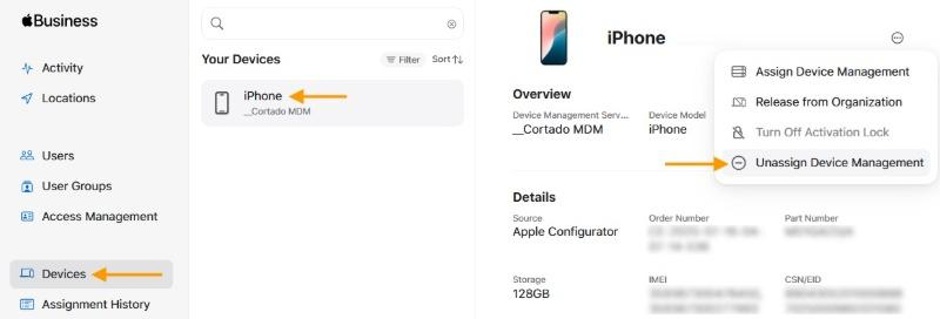
- Log in to Apple Business/School Manager and choose the Device Management option.
- Select the locked device.
- Click the three-dot menu bar in the upper right corner and choose to Unassign Device Management.
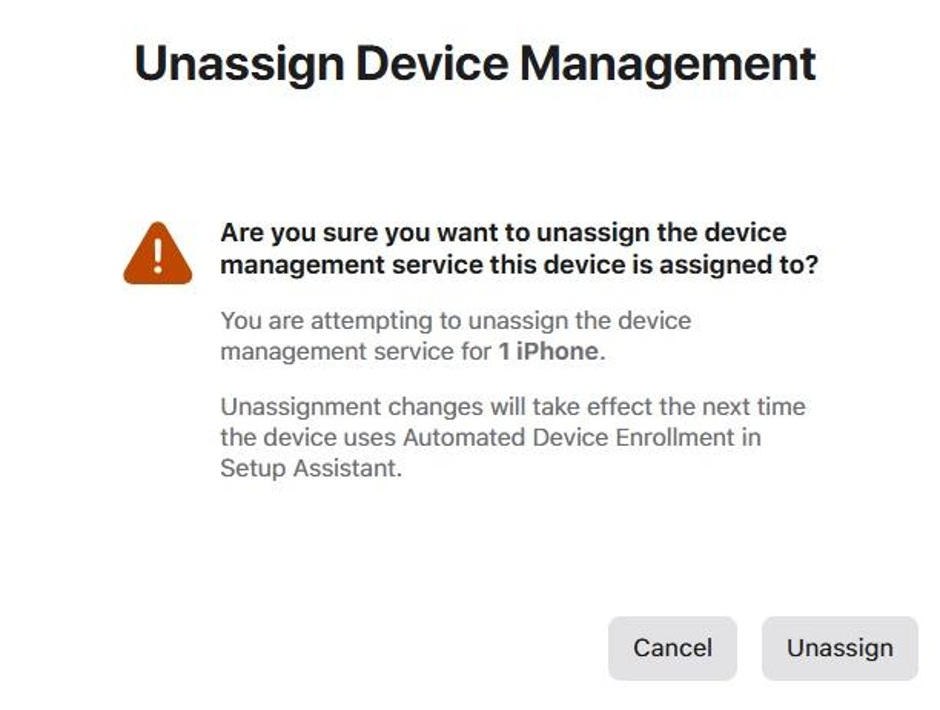
- Provide confirmation that you are unassigning the device from management, which means you are removing the MDM lock.
Limitation
While asking the administrator to remove the iPhone/iPad management lock is an effective approach to bypass MDM, there’s no guarantee that the organization will always agree to do that for you.
Moreover, if you’ve bought a second-hand phone, you’ll have to go through the extensive process of finding the relevant organization, contacting them, and explaining your issue before they even consider removing the lock.
Method 3. Remove MDM through iPhone Settings
If your management profile is such that you are able to access the Settings on your iOS device, then you are in great luck! You’ll be able to access the free and official option to remove MDM through Settings.
Here’s how:
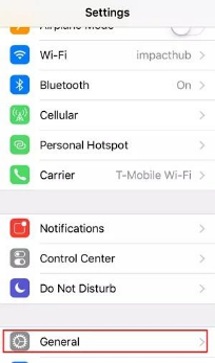
- Open the Settings app on your iPhone or iPad.
- Tap General.
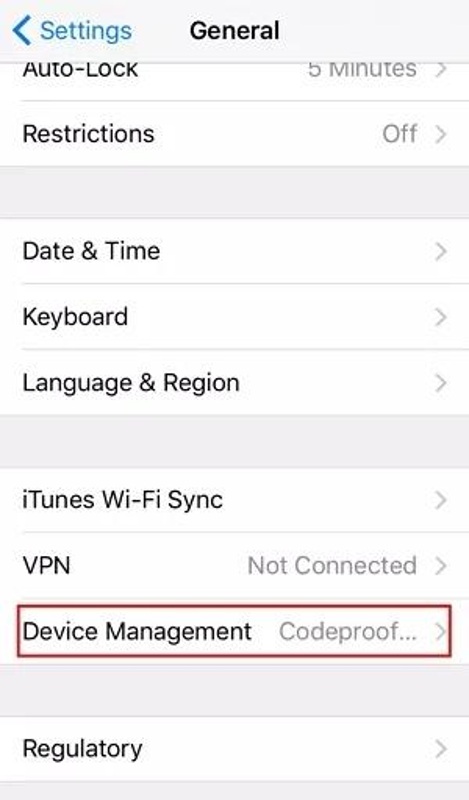
- Scroll down and tap Device Management.
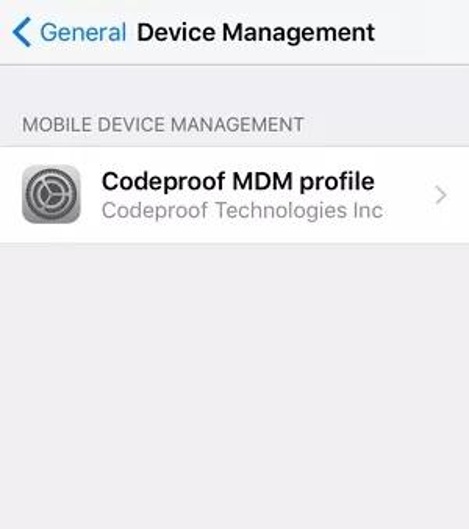
- Tap the profile that you want to remove.
- Tap Remove Management.
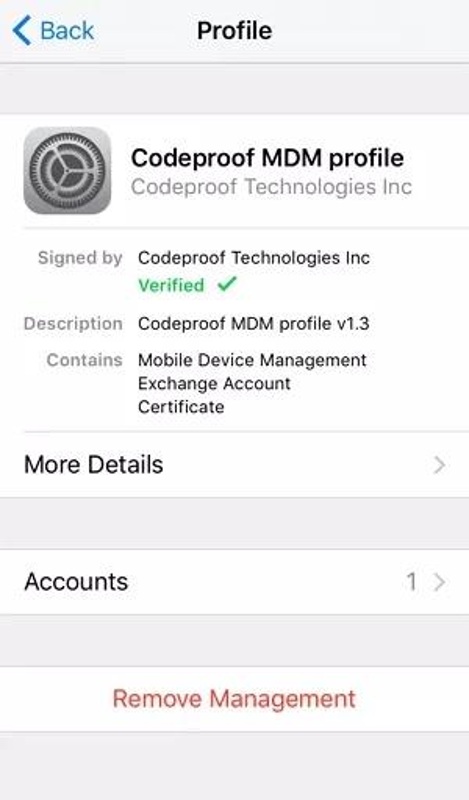
- Enter the username and passcode if prompted.
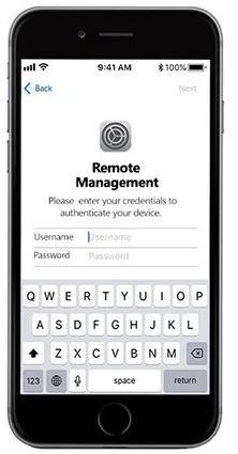
Limitation
Removing MDM through iPhone settings requires you to know the username and password for successful completion. Therefore, there’s a high chance that even if you have access to this method, you’ll have to choose one of the other free or paid options to remove MDM on iOS 27.
Part 3. Free vs. Paid Options to Remove MDM on iOS 27
There’s no wrong or right answer when it comes to choosing between free vs. paid methods to remove MDM on iOS 27.
The right method and total are dependent on different types of users, management profiles, and the exact MDM lock issue you are facing. Even in paid options, there are different types of tools, so you should choose the method that gets you the right outcome through a user-friendly MDM removal iPhone process.
The following table summarizes the differences between free and paid options to remove and bypass MDM on iOS 27:
| Free Tools | Paid Tools |
| Suitable for older iPhone/iPad and older versions of iOS | Supports the latest iOS versions |
| Requires technical expertise | Offers dedicated MDM features |
| Does not guarantee 100% MDM removal as it can come back after a factory reset | Ensures data preservation |
| Offers limited compatibility | Provides detailed step-by-step guides |
FAQs About MDM Bypass on iOS 27
1. Can I Remove MDM from My iPhone Without a Password?
Yes, you can remove MDM from your iPhone without a password using a third-party tool that supports this feature.
2. Why Is the Remove Management Option Missing?
If your iOS device is locked by the organization’s automated enrollment profile, you’ll likely be prohibited from removing the management profile, which means the remove management option will be missing. You’ll need to go through an MDM bypass process to remove the lock.
3. Does a Factory Reset Remove MDM on iOS 27?
No, a simple factory reset will not permanently remove MDM from your device, especially if the organization has registered it through an enrollment system.
4. Will MDM Return after Resetting or Updating My iPhone?
Resetting involves resetting all your iPhone’s configurations and possibly also deleting the files. If you’ve bypassed MDM with a suitable tool and then reset your device, it’s unlikely that the MDM lock will return. Updating, however, is an official update from Apple to fix security issues and provide new features. Not every update is the same, so whether MDM returns after an update is dependent on its exact specifications.
Conclusion
Bypassing MDM on iOS 27 might seem more complicated than it seems. But you just have to remember three methods to successfully remove MDM from your device and gain access to it.
Firstly, you should try to access the official Settings and remove the lock with a username and password. Secondly, if you don’t know the password, then contact the relevant administrator to remove the lock from the organization side. Thirdly and finally, if none of the other two methods work, then go for a third-party tool like 4uKey that has a dedicated feature to bypass MDM lock on all iPhones and iPads, including iOS 27.