

Moving data can be difficult when your Android phone is already set up. Fortunately, you can Transfer data from iPhone to Android without resetting iOS 27 using methods such as Android Switch, Tenorshare iTransGo, Samsung Smart Switch, and Google Services. Compare these four options to find the best way to transfer your contacts, photos, videos, messages, and other data.
Part 1. What You’ll Need to Transfer Data from iPhone to Android without Resetting iOS 27
Before transferring data from iPhone to Android without resetting iOS 27, make sure the Android phone has enough storage and both devices have sufficient battery. Keep your iPhone unlocked and prepare a compatible USB cable or stable Wi-Fi connection, depending on the transfer method.
Create a fresh iPhone backup using iCloud or another method, and sign in to the Google Account you plan to use on Android. Keep both devices available throughout the transfer, and do not delete any data from your iPhone until you confirm that everything has transferred successfully.
Part 2. Which Method Should You Choose to Transfer Data from iPhone to Android?
The best method depends on your Android brand, Android version, setup status, the types of data you want to move, and whether you have access to a computer. If you need selective transfer after setup, iTransGo offers a more direct option. Android Switch and Smart Switch work well when your device supports their transfer features, while Google Services works better for selected cloud-synced data.
| Method | Best For | Setup Status | Main Data | Computer |
| Android Switch | Supported Android phones | Depends on device | Photos, contacts, files, messages | Usually no |
| iTransGo | Selective cross-brand transfer | After setup | Photos, videos, contacts, messages, calendars, music | Yes |
| Samsung Smart Switch | Samsung Galaxy | Depends on Galaxy model | Photos, contacts, messages, calendars, files | Optional |
| Google Services | Selected cloud data | After setup | Photos, contacts, calendars, files | No |
Part 3. How to Transfer Data from iPhone to Android without Resetting
If you are deciding how to transfer data from iPhone to Android, first check whether your Android phone supports a built-in transfer option. If it does not meet your needs, you can use a computer-based tool or move selected content through Google Services. The four routes below can help you Transfer data from iPhone to Android while keeping the existing Android setup, but supported data and device compatibility differ.
Method 1. Transfer Data with Android Switch on iOS 27
Android Switch offers an official way to transfer supported iPhone data to compatible Android phones. Depending on the device and Android version, some phones may support post-setup transfers without resetting. If you want to Transfer data from iPhone to Android without resetting iOS 27, check your Android phone’s transfer settings first.
Steps to Transfer Data with Android Switch
Step 1: Open the Settings app on your Android phone and look for the data-transfer or backup option. Select the option that lets you bring data from an iPhone.
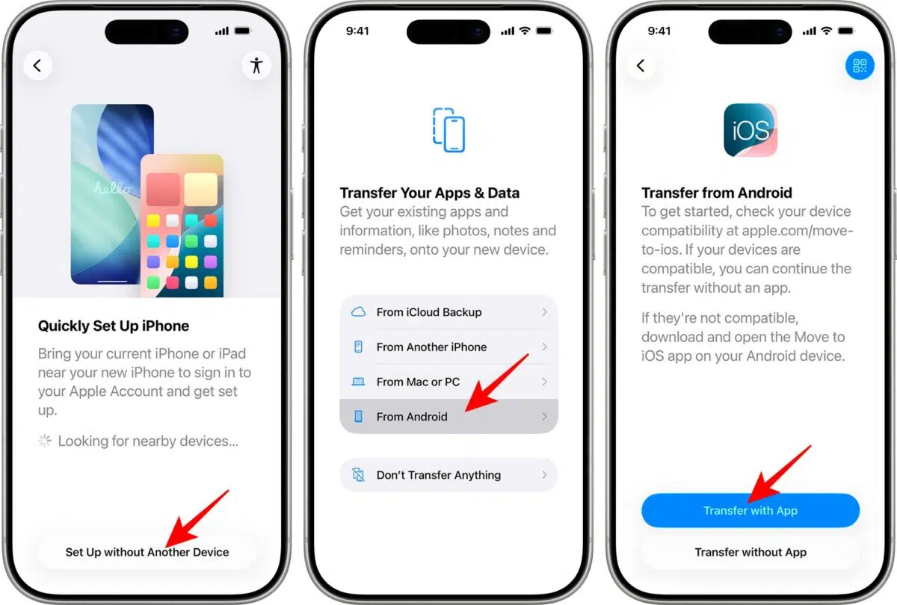
Open the Settings app
Step 2: Connect your iPhone to the Android phone using a compatible cable, or select the wireless option if your Android model supports it.
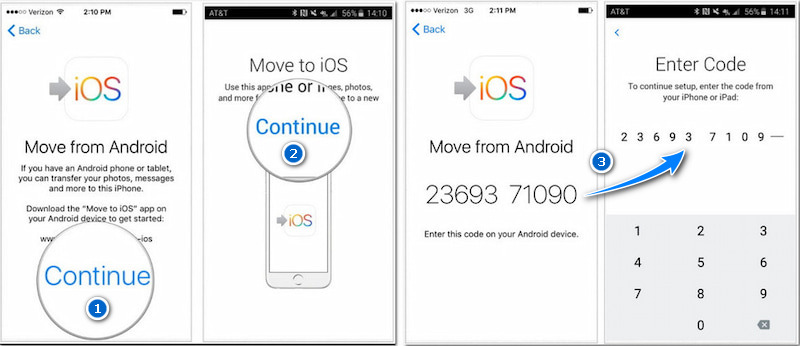
select the wireless option
Step 3: Unlock your iPhone and approve the required permission when prompted. Select the supported photos, contacts, messages, or other data that you want to move.
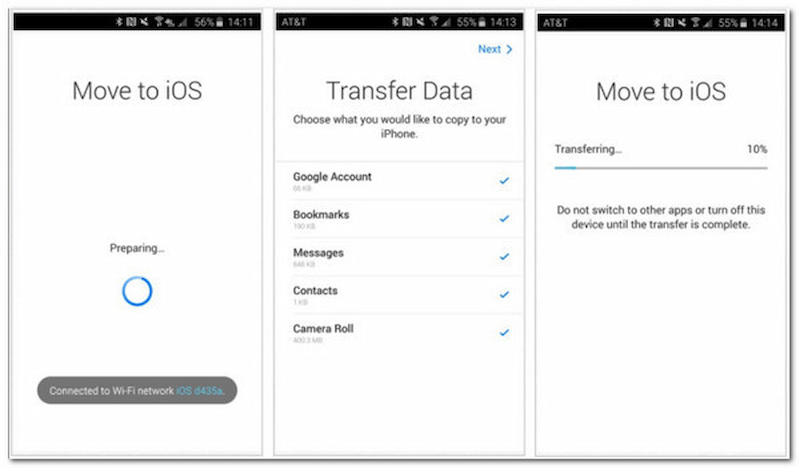
data that you want to move
Step 4: Start the transfer and keep both phones connected and available until the process finishes. Check the transferred content on Android afterward.
Limitation: Android Switch does not offer the same post-setup transfer options on every Android phone. Supported data categories can also vary by device and Android version.
Method 2. Transfer Data from iPhone to Android after Setup with iTransGo
Tenorshare iTransGo suits users who already set up their Android phone and want to keep its existing content. It provides a computer-based way to Transfer data from iPhone to Android without resetting iOS 27 instead of making you start the Android setup again. You can select supported data categories and transfer only what you need. iTransGo also supports cross-brand iPhone-to-Android transfers, making it useful when your phones come from different manufacturers.
Key Benefits of iTransGo
- No factory reset: Keep the existing Android setup while transferring supported iPhone data.
- Selective transfer: Choose the data categories you want instead of moving everything.
- Cross-brand transfer: Move supported content between an iPhone and different Android brands.
- Computer-based process: Use a USB connection instead of depending on a wireless phone-to-phone transfer.
Steps to Transfer Data with iTransGo
Step 1: Download and install iCareFone iTransGo on your computer. Open the program and select the iOS to Android transfer option from the main interface to begin the process.
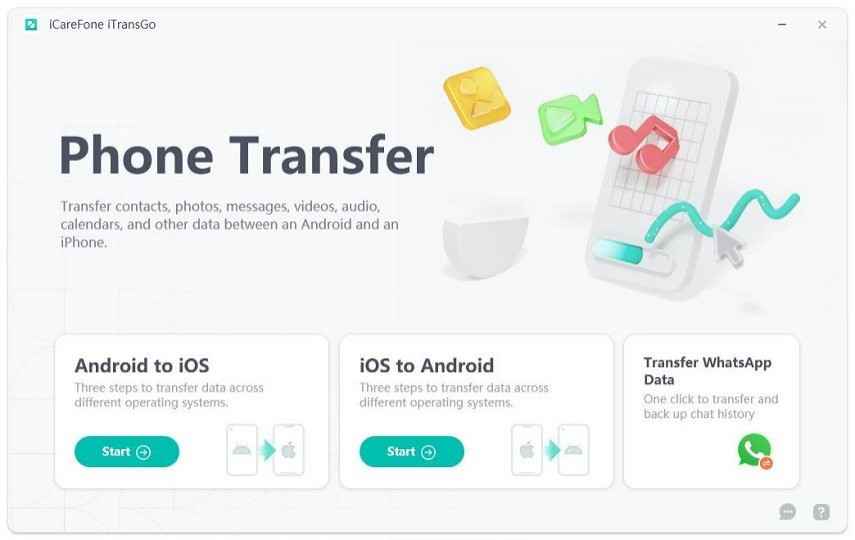
Download and Launch iCareFone iTransGo
Step 2: Connect both your iPhone and Android phone to the computer using USB cables. On the iPhone, tap Trust when the permission prompt appears. On Android, follow the on-screen instructions to enable USB debugging so iTransGo can detect the device.
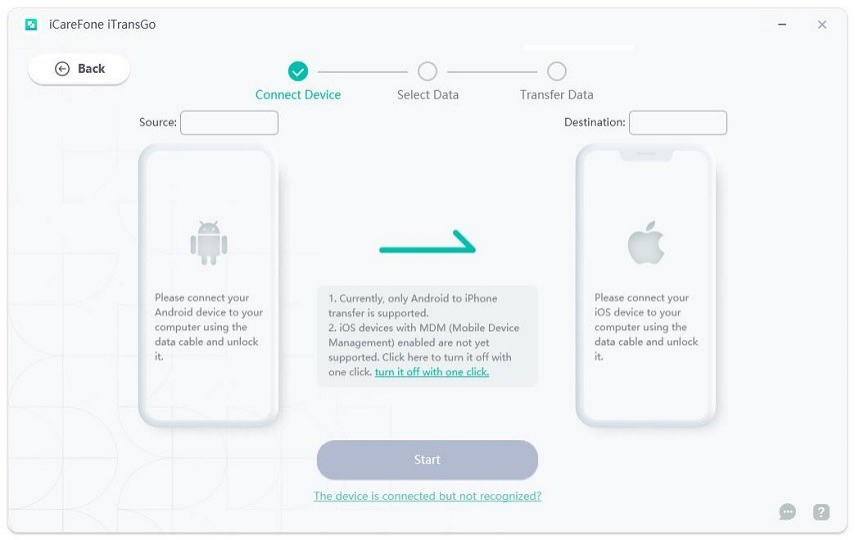
Connect Your iPhone and Android Phone
Once both phones appear in the program, check that the iPhone is the source device and the Android phone is the target device, then click Start.
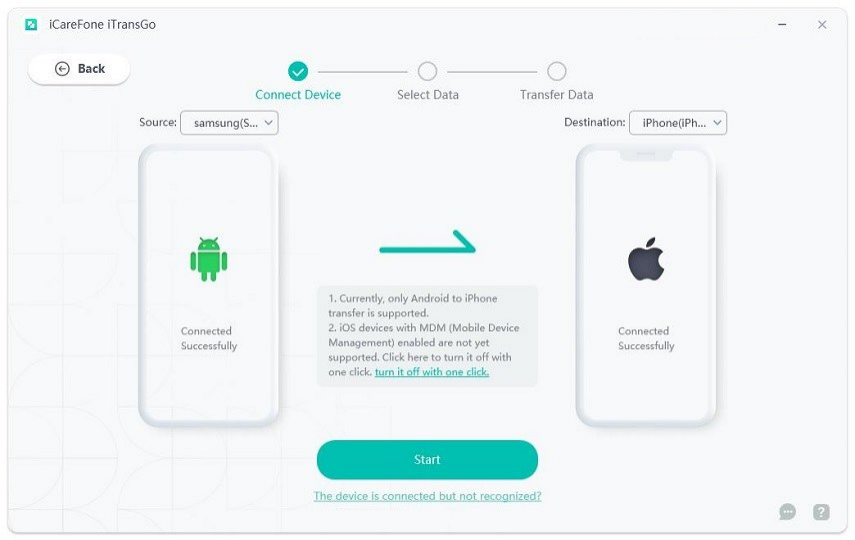
Click Start
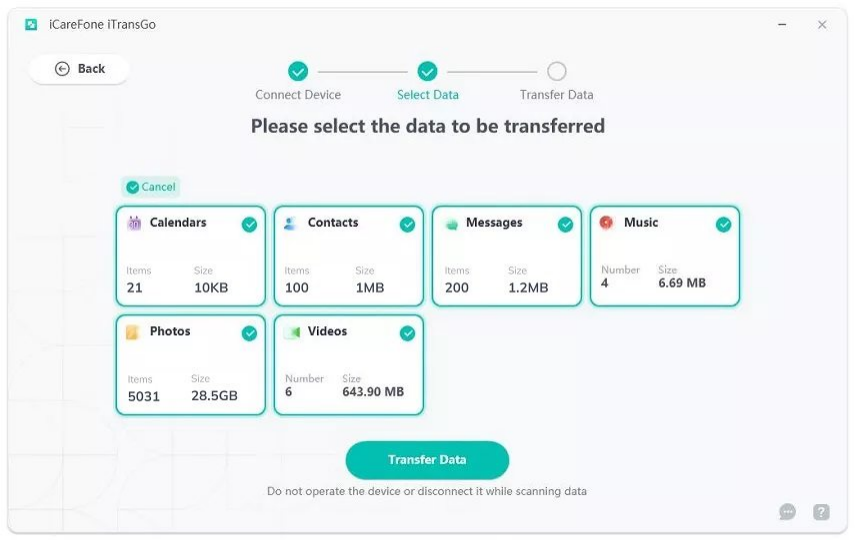
Step 3: Scan and Select the Data You Want to Transfer
Select the data categories you want to move from your iPhone, then click Start Scan. iTransGo will scan the source device and display the available data with its size and quantity. Review the results, select the content you need, and click Transfer Data to begin.
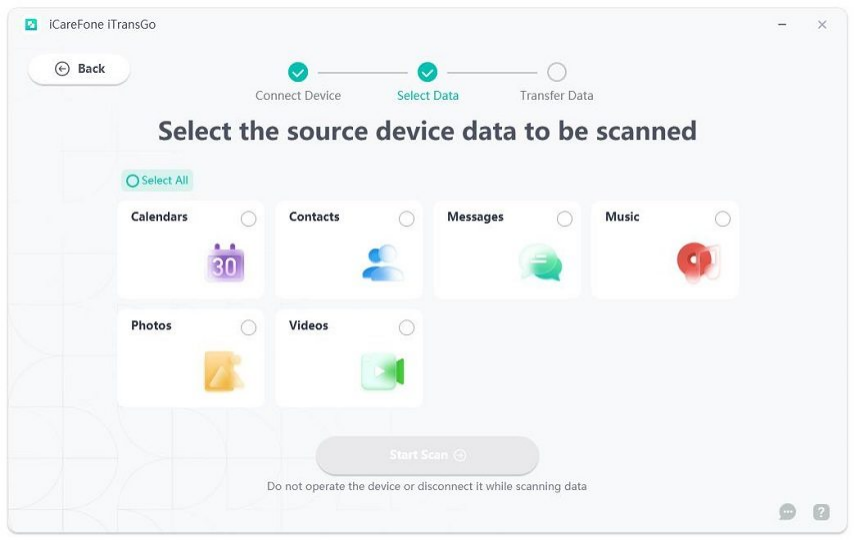
Scan and Select the Data You Want to Transfer
If the program asks for additional permissions, follow the on-screen instructions before continuing.
program asks for additional permissions
Step 4: Transfer the Selected Data to Android
iTransGo will transfer the selected content from your iPhone to the Android phone. Keep both devices connected throughout the process and do not disconnect either phone until the transfer finishes. The required time depends on the amount of data you selected.
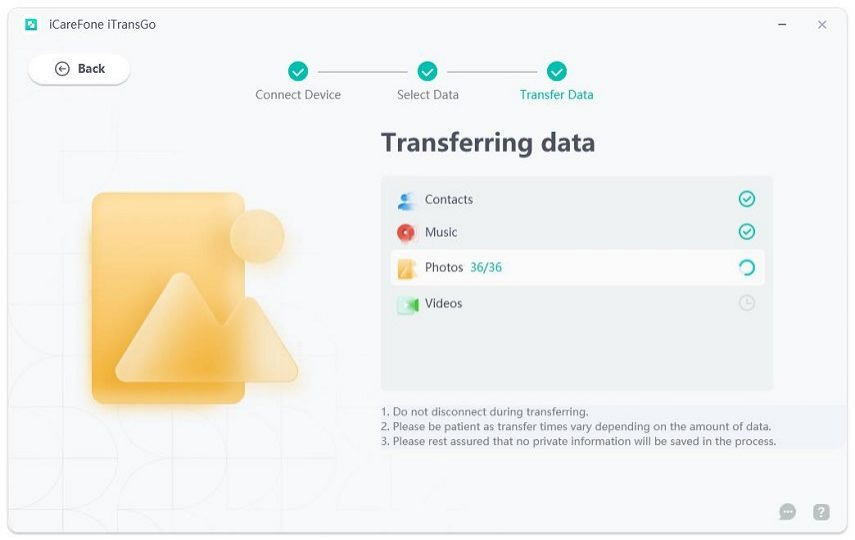
Transfer the Selected Data to Android
When the transfer completes, open your Android phone and check the transferred contacts, photos, videos, messages, and other supported content.
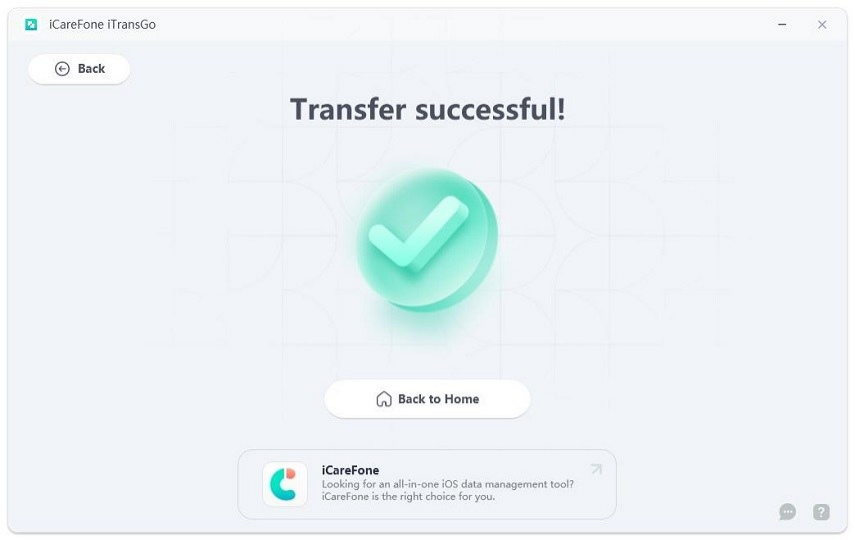
transfer completes
Limitation: iTransGo does not transfer every type of iPhone data or third-party app data. Check the supported data categories before starting your transfer.
Method 3. Transfer Data from iPhone to Samsung with Smart Switch
Samsung Smart Switch lets you transfer data from iPhone to compatible Samsung Galaxy phones via cable, wireless connection, or iCloud. It can transfer contacts, photos, videos, messages, calendars, and files, though some iPhone data may not be supported.
Steps to Transfer Data with Smart Switch
Step 1: Turn on your Galaxy and select iPhone or iPad when prompted. Scan the QR code with your iPhone Camera, keep both phones nearby, and tap Continue.
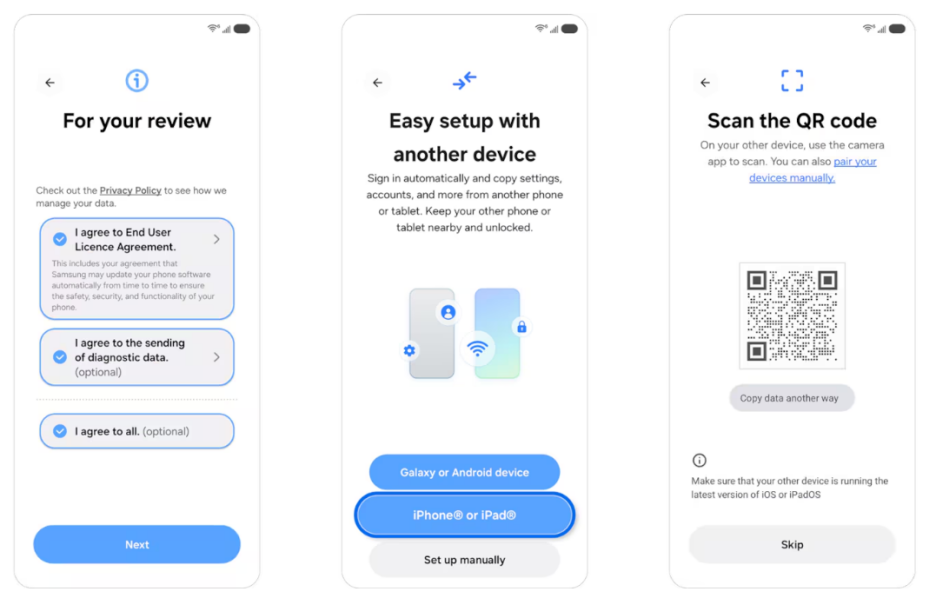
Start Galaxy setup and connect your iPhone
Step 2: On the Galaxy phone, tap Next, review the Smart Switch information, and allow the requested permissions. Continue on your iPhone and select the photos, contacts, messages, apps, or other supported content you want to move.
Step 3: After selecting your data, keep both phones close together and let Smart Switch begin the transfer. Watch the progress on the Galaxy screen and avoid closing the transfer screens or moving the devices away from each other until the process finishes.
Step 4: Complete the Galaxy setup by choosing your screen lock and reviewing Google and Samsung service settings. When setup finishes, open the Smart Switch notification to review the transfer results. Check your important content, turn off iMessage on the iPhone, and download remaining iCloud data if the available option supports it.
Limitation: Smart Switch mainly targets Samsung Galaxy devices, so it does not provide the same transfer experience on other Android brands. Some iPhone data may also remain unsupported.
Method 4. Transfer Data from iPhone to Android Wirelessly with Google Services
Google Services can help when you only need selected iPhone content rather than a full device transfer. This approach lets you transfer data from iPhone to Android wirelessly through services such as Google Photos, Google Contacts, Google Calendar, and Google Drive. You can upload your content from the iPhone and access it on Android by signing in to the same Google Account. This method works well for photos, videos, contacts, calendars, and supported files.
Steps to Transfer Data with Google Services
Step 1: Install Google Photos on your iPhone, sign in to your Google Account, and turn on backup. Keep the app active until your photos and videos finish uploading.
Step 2: Add your Google Account to the iPhone and enable contact and calendar syncing where supported. Then sign in to the same account on your Android phone.
Step 3: Open Google Drive on your iPhone and upload the documents or other supported files you want to access on Android.
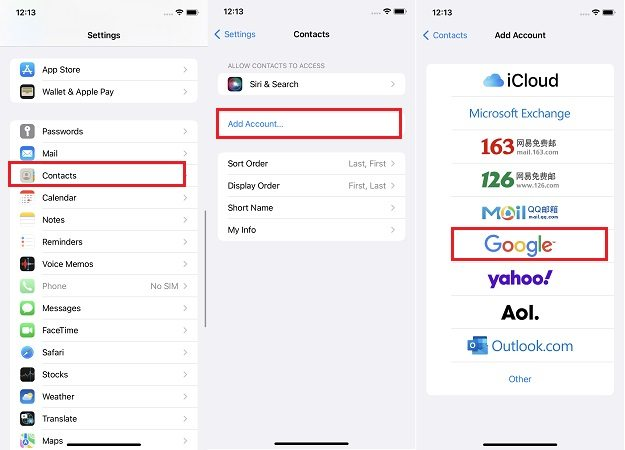
Add your Google Account
Step 4: Open Google Photos, Contacts, Calendar, and Drive on your Android phone using the same Google Account. Check your uploaded and synced content before deleting anything from the iPhone.
Limitation: Google Services does not provide a complete phone-to-phone migration. You need to handle different data types through their separate Google services, and some iPhone content may not have a direct equivalent.
FAQs
1. Can I Transfer iPhone Data to Android after Setup?
Yes. You can transfer data from iPhone to Android after setup, depending on your Android device. Some phones support post-setup transfers, while others may require a third-party tool or cloud service. If you want to keep existing data, choose a method that supports merging or selective transfer.
2. Does Transferring Data from iPhone to Android Erase Existing Data?
No. Transferring data does not always require erasing your Android phone. iTransGo supports transfer data from iPhone to Android without resetting iOS, while cloud services can add selected content to an existing device. Always back up important data first.
3. Can I Transfer All Data from iPhone to Android?
Not necessarily. Contacts, photos, videos, calendars, messages, and files can often be transferred, but some apps, passwords, protected media, and app-specific data may not transfer. Check the supported data types before starting.
4. How Can I Transfer Data from iPhone to Android without a Cable?
You can use cloud services or wireless transfer features. Google Photos can transfer photos and videos, Google Contacts can sync contacts, and Google Drive can store supported files. Some Android and Samsung phones also support wireless transfers.
5. Should I Turn Off iMessage before Switching to Android?
Yes. Turn off iMessage and FaceTime before switching to Android to prevent messages from continuing through iMessage. If you no longer have your iPhone, Apple also provides a way to deregister your number from iMessage.
Conclusion
You have several ways to Transfer data from iPhone to Android without resetting iOS 27. Android Switch works on supported devices, Smart Switch fits Samsung Galaxy users, and Google Services works well for selected cloud-based content. If you need transfer data from iPhone to Android without resetting iOS on an already configured phone, Tenorshare iTransGo is a practical choice for selective cross-brand transfers. Try Tenorshare iTransGo to move the supported iPhone data you need without a factory reset.