

I never used to think much about voice privacy. I gamed online, jumped on Discord calls, attended Zoom meetings, and never once considered that my real voice was just out there. Then a friend pointed out how easy it is to identify someone from voice alone, cross-reference it with a username, and piece together more personal information than you would ever want a stranger to have.
That conversation made me uncomfortable. And it sent me looking for a solution.
I discovered iTop Voicy while browsing for a reliable voice changer for PC. I was sceptical at first. Most voice changers I had tried before sounded robotic, added noticeable lag, or crashed the moment I opened a second app. I decided to give this one a proper test across a few weeks of regular use. Here is what I actually found.
Why Voice Privacy Matters More Than Most People Realise
Here is the thing. When you game online or hop on a voice call, your real voice goes out to people you often know very little about. In competitive gaming lobbies, streaming communities, and even professional remote meetings, you are sharing a biometric identifier with strangers every single time you speak.
Believe it or not, your voice carries more than just your words. It can reveal your age range, your gender, and sometimes even your emotional state. For streamers, content creators, and anyone who spends real time in online communities, that is a lot of personal information to hand out without thinking.
The simple truth is that voice privacy is not paranoia. It is just sensible. And a good voice changer for PC gives you control over what you share and what you keep to yourself.
What iTop Voicy Actually Is
iTop Voicy is a real-time voice transformation and sound creation tool built for Windows 10 and Windows 11. It is freeware, so there is nothing to pay to get started. It is built by iTop Inc., the same team behind iTop VPN and iTop Easy Desktop.
What sets it apart from basic voice changers is the technology underneath. It uses advanced AI voice modelling and signal processing to deliver voice changes with millisecond-level latency. In practice, that means your transformed voice comes out in real time without any noticeable delay on the other end.
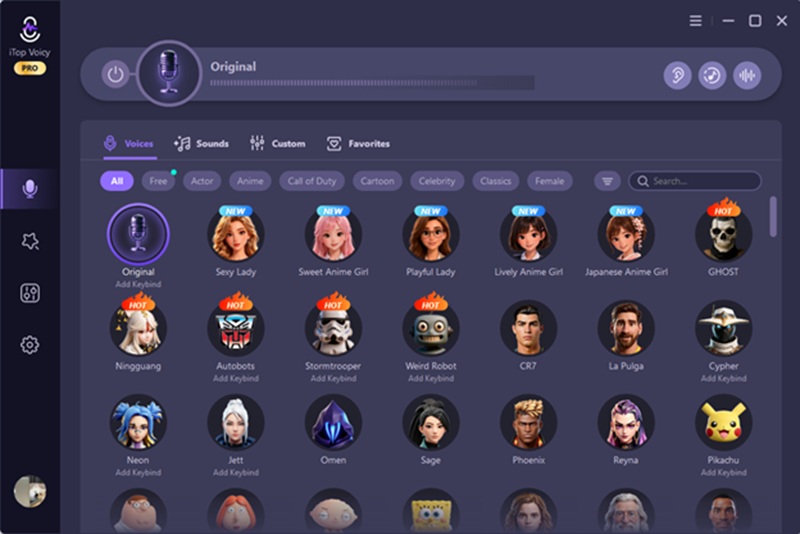
The voice library is genuinely extensive. Hundreds of voice models covering male, female, robot, celebrity, cartoon character, and iconic movie role options. You are not limited to a handful of generic presets.
How I Set It Up
The setup took less than five minutes from download to first use.
Step 1: Download iTop Voicy
Go to the iTop Voicy official download page and grab the installer. It can run on Windows 10 and Windows 11. Download, save, and run the installer file.
Step 2: Install and Launch
Follow the on-screen prompts, and the app opens automatically when installation finishes. After that, the system will prompt you to set up your microphone. The interface is clean and well laid out. Everything is visible from the main screen without digging through settings menus.
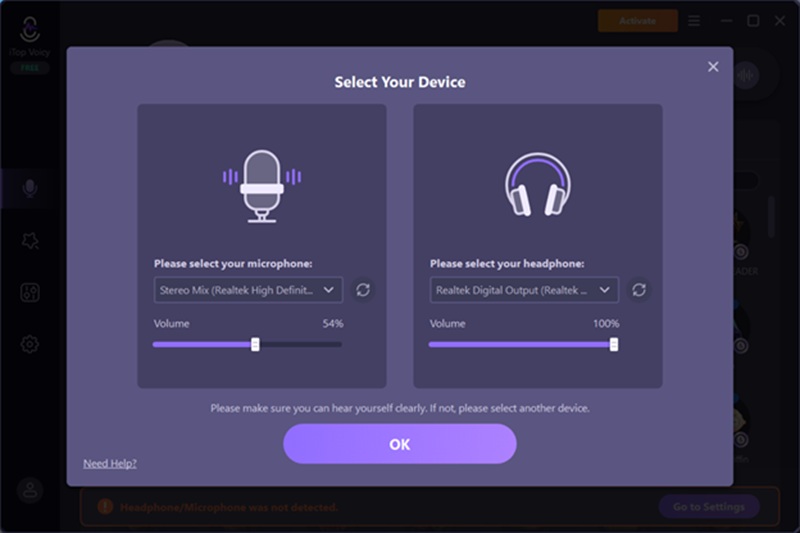
Step 3: Choose a Voice Model and Connect to Your Platform
Browse the voice library, pick a model, and activate it. iTop Voicy works seamlessly with Discord, Zoom, Microsoft Teams, Google Meet, Roblox, Fortnite, YouTube, TikTok, OBS, and Twitch. Set it as your microphone input in whichever platform you are using, and you’re live. The whole process takes about two minutes the first time.
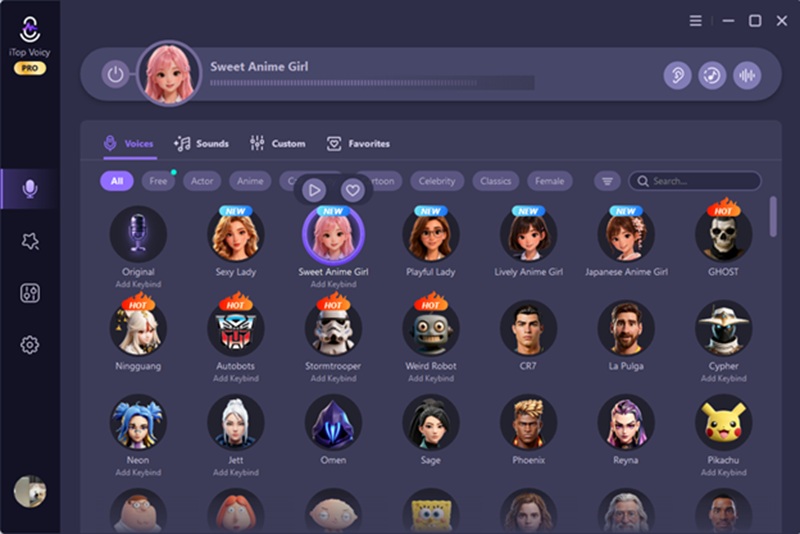
Step 4: Customise With Voice Lab (Optional)
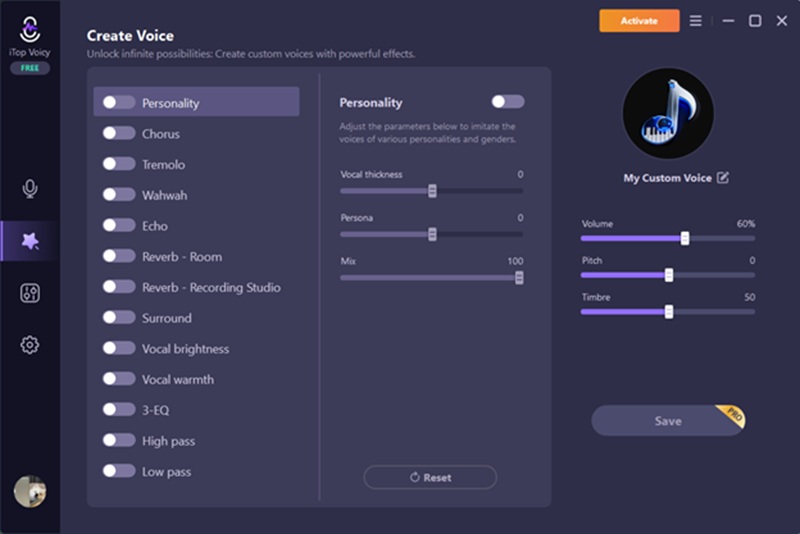
If the presets are not quite right, the Voice Lab lets you go deeper. You can adjust pitch, timbre, and formant manually, and layer professional effects including Echo, Reverb, Chorus, Tremolo, and more. I spent about twenty minutes in here building a voice I now use consistently across gaming sessions. It is genuinely fun to use once you get into it.
How I Use It Day to Day
I primarily use iTop Voicy across three situations.
Gaming lobbies. I play in competitive lobbies where I do not know most of the other players. Having a consistently transformed voice means I can communicate freely without giving away my recognisable voice to strangers. The Instant Voice Switch feature lets me change models mid-session using custom keybinds, which is useful when I want to switch things up between rounds.
Streaming. I occasionally stream to small audiences, and the ability to maintain a consistent on-stream persona without using my real voice is something I did not realise I wanted until I had it. The cross-platform support with OBS and Twitch means there is no complicated routing setup required.
Remote work calls. This one surprised me. I now use a subtle voice modification on Zoom calls with people I do not know well. Not a dramatic transformation, just enough to add a layer of separation between my real voice and a professional one. The audio quality stays crystal clear, which matters in a work context.
The Multi-device Sync feature is worth mentioning here, too. My custom voice settings and favourites stay synced across my desktop and laptop automatically. I do not have to rebuild my setup every time I switch machines.
What I Actually Like About It
After several weeks of regular use across gaming, streaming, and work calls, here is what stands out.
- Real-time performance is genuinely impressive. Millisecond-level latency means the person on the other end hears a natural, smooth voice with no robotic stutter or delay.
- The free tier gives you access to a proper range of features without immediately pushing you toward a paid plan.
- Cross-platform support is comprehensive. Discord, Zoom, Teams, OBS, Twitch, Roblox, Fortnite. Everything I actually use is covered.
- Voice Lab gives real creative control. This is not just a pitch slider. You can build something that sounds genuinely unique.
- Importing custom sound effects is a nice touch for anyone who wants to go beyond the built-in library.
- The Audio and Video Re-voicing feature is useful for content creators who want to dub existing recordings with a different voice.
What Could Be Better
Balanced means honest. So here is what I think needs work.
- The voice library, while large, has some models that sound more convincing than others. A few of the celebrity-style voices are noticeably less polished than the core male and female options.
- The app is only available for Windows 10 and Windows 11. If you are on an older system, it will not run
- Some advanced Voice Lab parameters take time to understand. There is no in-app tutorial walking you through what formant adjustment actually does, which can be frustrating for first-time users.
My Honest Verdict
The simple truth is that most voice changers I had used before felt like novelty tools. Fun for five minutes, then abandoned. iTop Voicy is different. The audio quality is good enough to use in professional settings, the privacy benefit is real, and the creative tools in Voice Lab go deeper than anything I expected from a freeware product.
If you spend real time in online voice chats, gaming lobbies, or live streams, and you have never thought about what your real voice gives away to strangers, this is worth downloading. It is free, it runs in minutes, and it does exactly what it says.
Start with a preset, spend some time in Voice Lab, and build something that is yours.
I want voice changer
I want voice changer