


Working on a laptop is fine. Until you run out of space. One screen just isn’t enough. It is especially not when you’ve got emails, spreadsheets, documents, and websites. You need to open them all at the same time. That’s why more people are using laptop screen extenders. They give you extra space. So you can work faster and focus better.
But here’s the thing. Just adding a second screen isn’t the full solution. You must know how to use it correctly for better focus. Let’s see how!
Quality Tips to Use a Laptop Screen Extender Effectively
1. Set Up Your Screens the Right Way
Where and how you place your laptop screen extender make a big difference. If it’s not aligned properly, you may turn your head too much, straining your eyes.
Here’s what helps:
- Keep both screens at eye level
- Make sure the second screen is lined up with your main one
- Use a stand or support if needed
- Keep cables folded away to avoid clutter
Your workspace should feel clean and easy. Fewer distractions are equal to better focus.
2. Choose What Goes on Each Screen
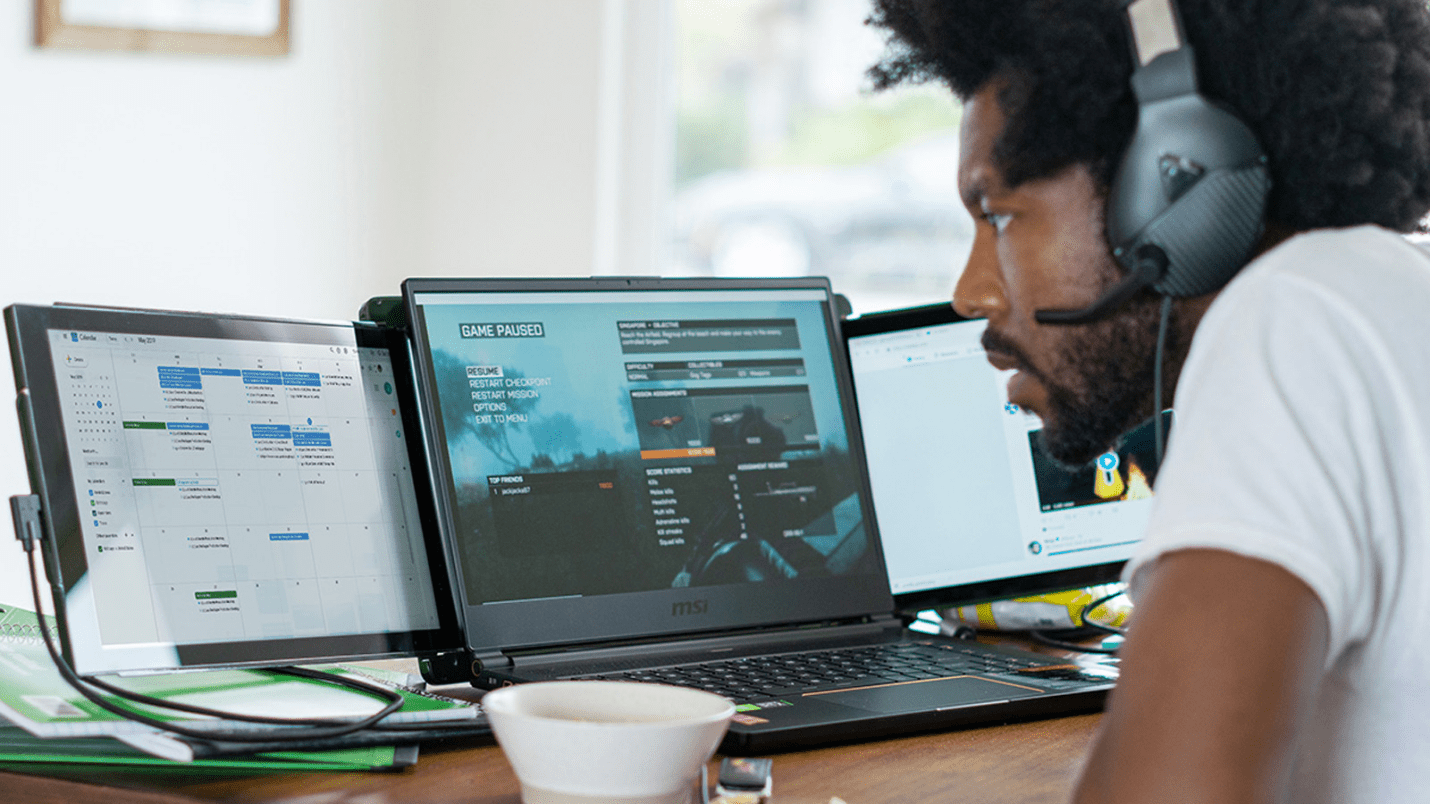
Don’t spread things out randomly—that can get confusing quickly. Decide what belongs on each screen.
Try this setup:
- Main screen for active work (like writing, designing, coding).
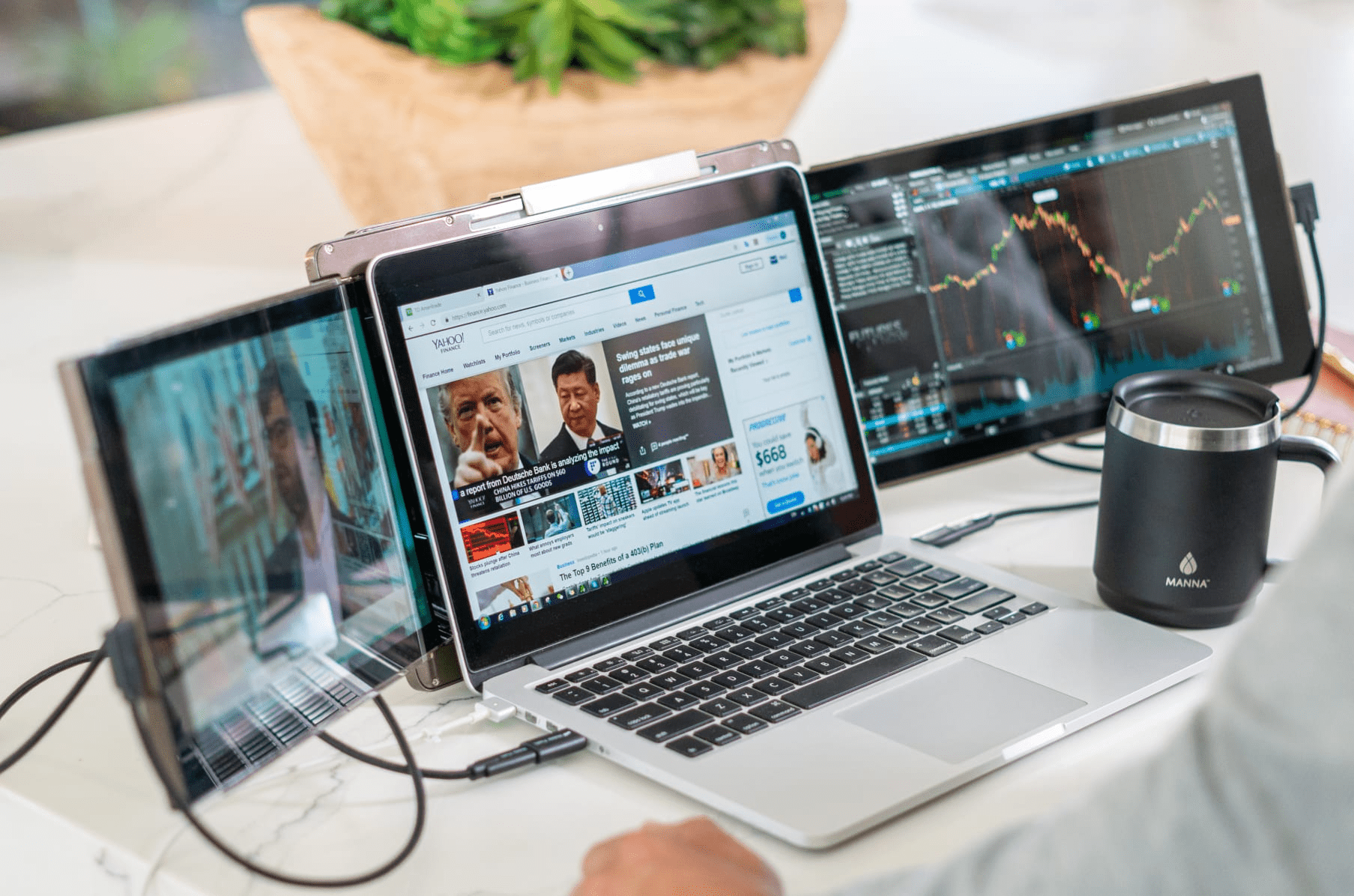
- The second screen is for emails, chats, or research.
- Use the extra screen to look at data. Or take notes while you work.
This simple method helps you stay organized. You won’t be jumping back and forth between windows all day.
3. Switch Your Layout Based on the Task
Different tasks require different setups. There is no rule that says your screens have to look the same every day.
Some ideas:
- For writing: notes on one screen, draft on the other
- For meetings: video call on one, notes or slides on the second
- For design: tools on one screen, full view of your work on the other
You’ll work faster when your screens match your workflow. Try new setups until one feels just right.
4. Manage Notifications Like a Pro
Dings and pop-ups ruin focus. You may ignore them once. But they still grab your attention.
To fix this:
- Turn off all non-urgent alerts during work time
- Use “Do Not Disturb” mode when you’re busy
- Let notifications show on just one screen
This way, you’re not being pulled in different directions. You control your time, not your apps.
5. Give Your Eyes a Break
Staring at two screens all day can wear you out. Even with a good setup, your eyes still need rest, so keep taking breaks.
Also:
- Step away from the screen every hour
- Stretch, walk around, or drink water
- Come back refreshed and ready
You’ll feel more focused after just a few minutes away.
6. Clean Up Your Digital Space
A messy screen slows you down. With two screens, it gets even easier to lose track of things.
Once a week:
- Clear your desktop
- Close extra tabs and programs
- Sort files into folders
- Add shortcuts for tools you use daily
It only takes a few minutes. But it helps you feel in control again. Clean space = clear mind.
7. Keep Improving Your Setup
Your needs will change. A setup that worked last month may not be helping now. Take time every so often to think about how you’re using your extender:
- Is one screen too crowded?
- Are you still getting distracted?
- Could your setup be simpler?
Try small changes. You don’t need to redo everything. Just move things around and see what helps. It’s your space. Make it work for you.
Final Thoughts
A laptop screen extender is a way to stay focused, feel less cramped, and work with less stress. But the magic only happens when you use it with purpose. Keep your setup tidy. Place the right tools on the right screens. Adjust based on your task. All of this is great for maintaining a better focus while working using an extender.