


A lyric video producer simplifies the task of music visualization of your favorite songs. Being a musician or a content creator, you can easily synchronize lyrics with music and add a nice animation. Even without any prior editing knowledge, you can produce high-end lyric videos to attract the attention of your viewers and bring in more emotion to the music. This article looks into the ultimate lyric video maker, Filmora.
Part 1. Why Use a Lyric Video Maker Instead of Manual Editing
Before we look into the tool that helps you create lyric videos for music, here are the reasons why you need to opt for a lyric video generator:
- Time Saving: Lyric video tools automatically match your lyrics with the music. This helps you save hours of manual labor in attempting to match text and animations.
- Simple to Customize: It is very easy to select the ready-made templates, fonts, and visual effects. With the help of such tools, you get to fit the video appearance with your song style with ease.
- Professional Results: They are accompanied by transitions and motion effects to create a smooth finish. Your video will appear as professional as those that have been created using high-quality editing.
- No Technical Skills: Video editing programs are easy to use, even when you are a beginner in the field of video editing. Their drag-and-drop options provide a simple and fun way of creating videos.
- Lyric Placement: Lyric video creators maintain the same images and rhythm throughout your project. This makes sure that your lyrics are always on pitch and appealing every time.
Part 2. The Ultimate Choice – Filmora as the Best Lyric Video Maker
Wondershare Filmora is a simple but powerful AI lyric video maker that can be used to create music and lyric videos. It offers royalty-free access to a massive library of music, sound effects, and visual templates to gain high-quality content. Filmora is an AI-based solution, which simplifies matching audio, generation of lyrics, and text animation.
The creators can give the lyric videos visuals a more beautiful effect with filters, transitions, color correction, and motion effects. Capabilities such as green screen editing, multi-clipping, and real-time beat identifying contribute to creativity even more. Filmora offers the ideal combination of quality and complexity in social media videos, as well as professional editing.
Key Features of Filmora
- AI Speech-to-Text: This feature is an automatic transcription of vocals into lyrics displayed on the screen, and it is time-saving and perfectly correct to the song.
- Audio Beat Detection: Filmora detects the beat in your song and sets the text animations or transitions to the beat perfectly.
- Animated Text Templates: It offers a great variety of animated text designs and can be adjusted to various fonts, colors, and effects to be creative in designing lyrics.
- Music Visualizers: Filmora incorporates responsive graphics that appear on the screen and move with the music, adding extra vitality to the video.
- AI Lyric and Music Generator: This feature allows users to create original lyrics and background music in Filmora and insert creativity and originality into any project.
Part 3. Best Templates and Effects in Filmora Lyric Video Maker
Here is a quick overview of the templates and effects in Filmora that you can use as you make a lyric video:
| Template/Effect Name | Why it’s Great For Lyric Videos |
| Neon Lyrics Template | Vibrant neon colors and smooth animations add energy and grab attention for upbeat songs. |
| Lyric Slideshow | Story-driven slides suit emotional or romantic songs, enhancing lyrical storytelling. |
| Glitch Effect | Distorted visuals bring an edgy, modern touch to hip-hop or electronic tracks. |
| Cartoon Filter | Playful comic-style visuals make fun songs or catchy choruses stand out. |
| Highlight Glow | Soft, glowing text makes lyrics pop, perfect for bright or aesthetic videos. |
| Audio-Driven Text Effects | Syncs text perfectly with the beat, making lyrics feel dynamic and alive. |
Part 4. How to Make a Lyric Video in Filmora – Complete Guide
Jump into the steps below to get a better understanding of how to make a lyric video using Filmora:
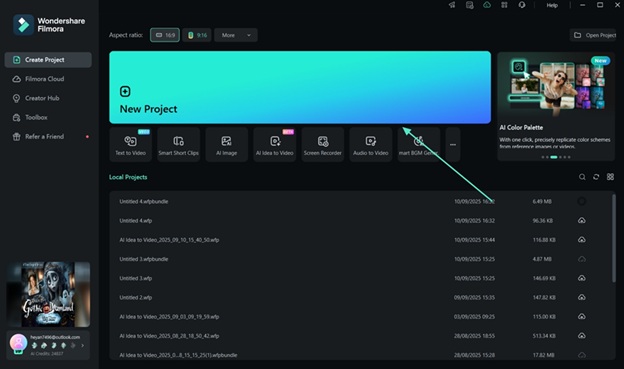
- Step 1. Access Filmora, Click New Project to Import Music Video. Start the process by accessing Filmora, click on the “New Project” button to import the music video.
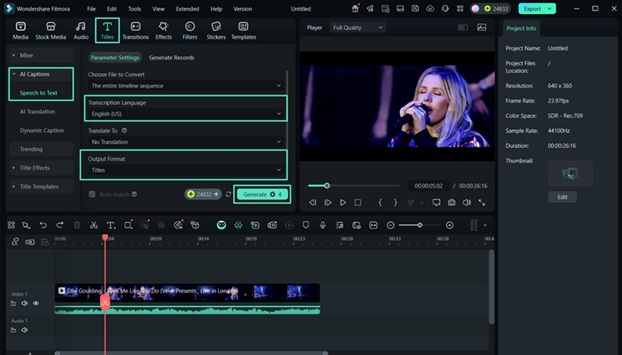
- Step 2. Navigate Speech to Text Function. At the “Title” section, pick the “AI Captions” tab to choose the “Speech to Text” option. Now, select the “Transcription Language” and choose “Output Format” to hit the “Generate” button.
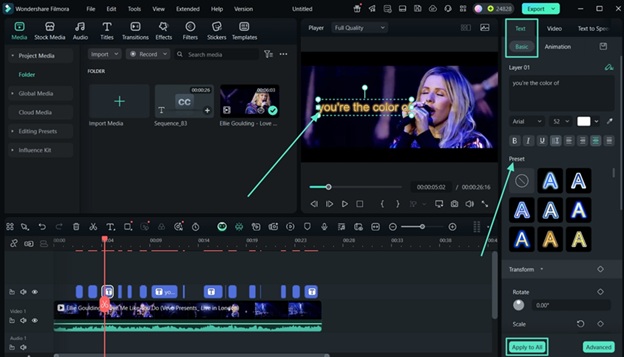
- Step 3. Edit the Text Properties. Next, click on the AI-generated text and shift to the right “Text” to “Basic” panel to edit the properties.
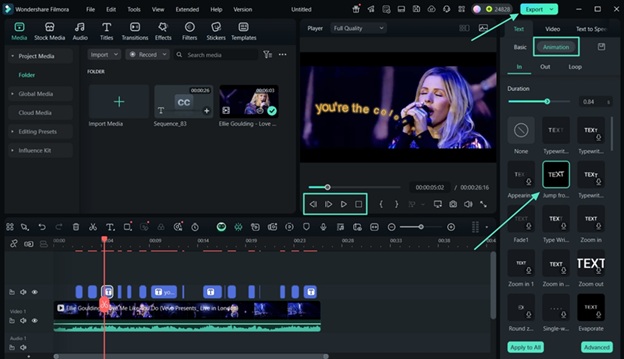
- Step 4. Apply Animations to the Lyrics and Export the Video. Then, hit the “Animation” panel and apply it to the text. Use the “Playback” icons to preview the video and hit the “Export” button.
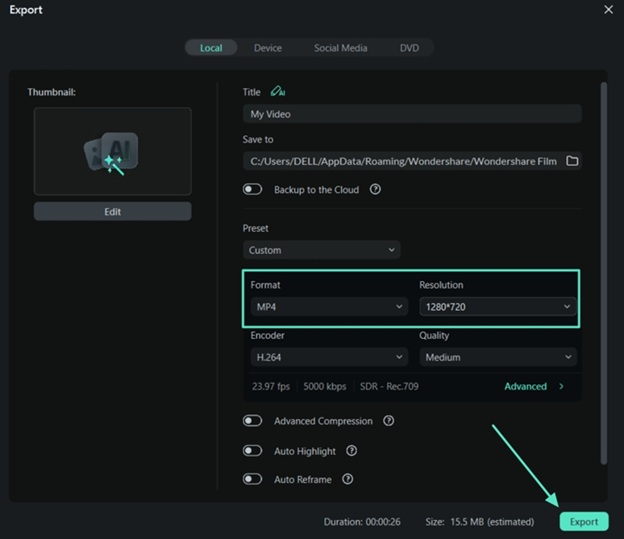
- Step 5. Choose the Resolution and Format of the Lyric Video. Finally, choose the “Format” and “Resolution” you want for the video and hit the “Export” button to download the video.
Conclusion
In conclusion, this guide discusses the best lyric video maker and how it helps users like content creators, musicians, and more. Along with a detailed explanation of its features, we have also provided you with a guide to help you easily navigate through the video maker software.
Contributed by Shahid Latif: Shahid Latif is an SEO specialist and tech writer with over three years of experience in On-Page, Off-Page, and Technical SEO. He combines his expertise in search optimization with a passion for writing about technology, digital marketing, and online business growth. His work focuses on driving sustainable organic traffic and building authority through guest posting and high-quality content. Connect with him at shahidlatifseo@gmail.com.