

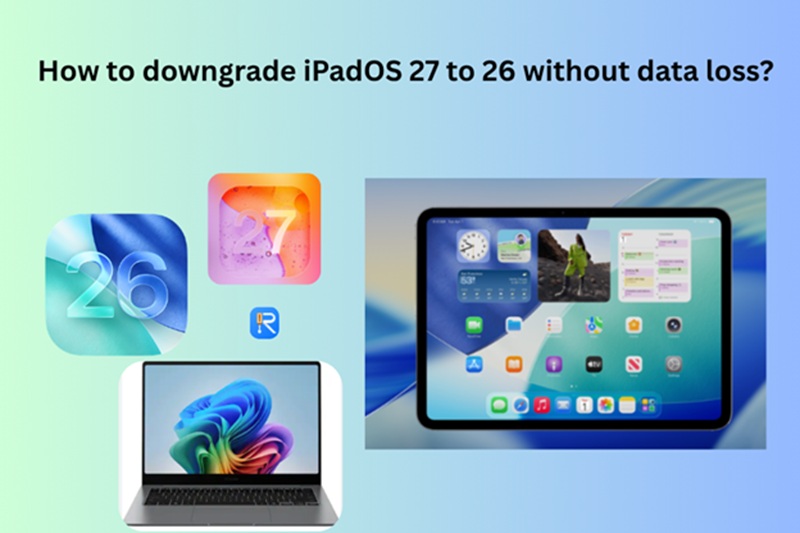
So you installed iPadOS 27—perhaps the developer beta, perhaps the public beta—and now your iPad feels less like a productivity powerhouse and more like a crash-prone frustration machine. Battery life has taken a hit. Apps are freezing. Features that worked flawlessly yesterday are suddenly broken. If you’re searching for a way to downgrade iPadOS 27 to 26, you’re not alone.
Can You Go Back from iPadOS 27 to iPadOS 18?
No. Downgrading iPadOS 27 to 18 is impossible. For devices that have already been upgraded to iPadOS 27, there is no official or reliable method to downgrade to iPadOS 18. Apple strictly controls which versions of iPadOS can be installed on a device through its “signing” mechanism.
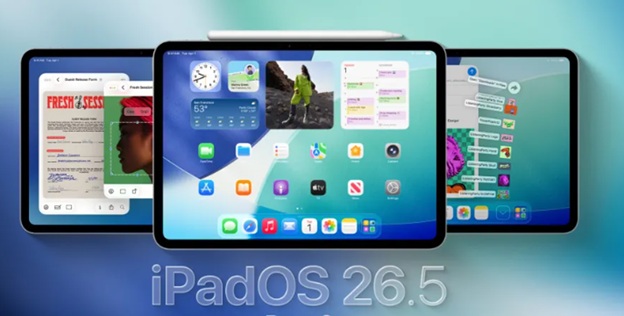
On July 7, 2026, Apple stopped signing iPadOS 26.5 and 26.5.1. Currently, for iPadOS 27 users, the most stable and safe choice is to downgrade to iPadOS 26.5.2.
Always verify before attempting: Check which versions are currently signed at IPSW.me for your specific iPad model.
Before You Downgrade iPadOS 27 to 26:
This is the part most users discover too late. A backup made while running iPadOS 27 cannot be restored onto iPadOS 26. Apple’s backup system is not backward-compatible. If you back up your iPad today—while it’s on iPadOS 27—that backup is useless for a downgraded device. You can transfer data from an iPad to a computer and download it again without iCloud.
Method 1: iTunes/Finder –The Official Downgrade (Loss All Data)
Restore iPad via Recovery mode is Apple’s own downgrade iPadOS method. It’s free, it’s reliable, but it will lose all data when you restore your device.
Pre solution
- A Mac (with Finder) or a Windows PC (with the Apple Devices app, or iTunes if you’re on an older setup)
- A USB-C or Lightning cable and a stable internet connection;
Steps to downgrade iPadOS 27 to 26 with iTunes/Finder:
Step 1: Back up whatever you can.
Since your iPadOS 27 backup won’t work on iPadOS 26, focus on iCloud-synced data and app-specific cloud backups. Make sure iCloud Photos, iCloud Drive, Contacts, Calendars, and Messages in iCloud are all turned on.
Step 2: Disable Find My.
Go to Settings > your name > Find My > Find My iPad and toggle it off. This is required for the restore process to work.
Step 3: Connect your iPad to your computer.
Step 4: Put your iPad into Recovery Mode.
The method depends on your iPad model:
- iPad with Face ID (or a Touch ID power button): Press and quickly release the Volume Up button. Press and quickly release the Volume Down button. Then press and hold the Top button until your iPad begins to restart. Continue holding until you see the recovery mode screen.
- iPad with a Home button: Press and hold both the Home and Top (or Side) buttons simultaneously. Keep holding until you see the recovery mode screen.
Step 5: On your computer, click “Restore iPad”:
- Mac (Finder): Your iPad will appear in the sidebar. Click it, then click “Restore iPad.”
- Windows (Apple Devices app): Select your iPad, then click “Restore iPad.”
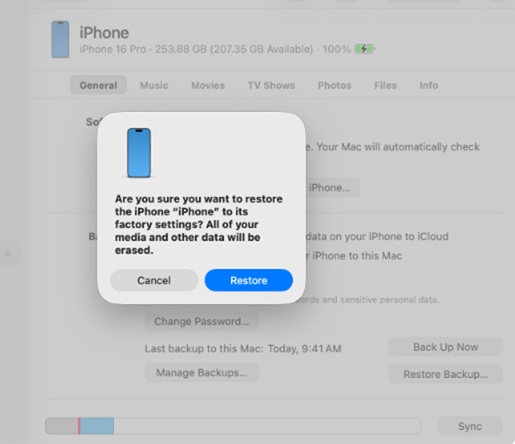
A dialog will appear asking you to confirm. Click Restore. Your computer will erase your iPad and install the latest publicly available version of iPadOS that Apple is still signing.
Step 6: Wait for the process to complete. It may take 15–30 minutes.
Step 7: Set up your iPad.
If you have an archived backup from before you installed iPadOS 27, restore from that now. Otherwise, set up as new and sign in to iCloud to sync your data back.
Method 2: Tenorshare ReiBoot-an Downgrade iPadOS tool suitable for everyone (Recommended)
If you prefer a guided, click-through experience, tools like ReiBoot can help—but always verify the signing status first. Tools like Tenorshare ReiBoot market themselves as one-click solutions to downgrade iPadOS 27 to iPadOS 26. They can simplify the process by handling the technical steps for you.
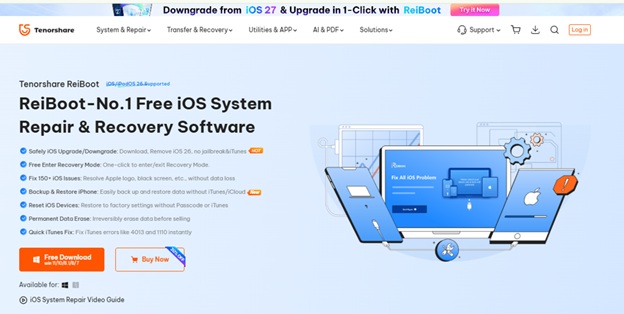
Tenorshare ReiBoot is a professional iPadOS/iOS system repair and downgrade tool without losing any data. With a clean, one?click interface, it can:
- Downgrade iPadOS without requiring you to hunt down IPSW files
- Fix stuck recovery mode, white Apple logos, and boot loops
- Work even when Apple is still signing the older version—but much faster and safer than the manual method
Step to downgrade iPadOS 27 to 26 via Tenorshare ReiBoot
Step1. Free download Tenorshare ReiBoot and connect your iPhone to the PC
Step2. Open Tenorshare ReiBoot and choose iPadOS Upgrade/Downgrade ? Downgrade Function
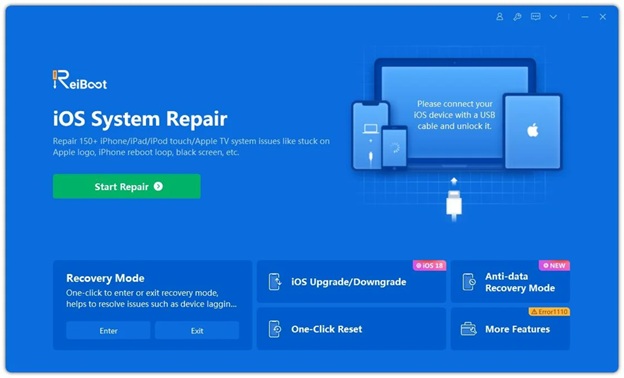
Step3. Install iPadOS 26 version as it tips and wait 15-20 minutes to install successfully.
However, there’s a critical catch: Tenorshare ReiBoot cannot bypass Apple’s signing mechanism. If Apple has stopped signing iPadOS 26.5.2, ReiBoot cannot install it either. It’s a convenience tool, not a magic wand.
Method 3: DFU Mode (Downgrade but lose all data)
If Recovery Mode doesn’t work, DFU (Device Firmware Update) mode is a deeper restore that reloads the device’s firmware and bootloader.
Warning: DFU mode is more complex and requires precise button timing. It also erases everything—just like Recovery Mode.
Steps for iPad with Face ID:
- Connect your iPad to your computer
- Quickly press and release Volume Up
- Quickly press and release Volume Down
- Press and hold the Top button until the screen goes completely black
- Immediately (while still holding the Top button), also press and hold the Volume Down button for about 5 seconds
- Release the Top button, but continue holding Volume Down for another 10 seconds
- If done correctly, your computer will detect a device in DFU mode—the screen stays black
- In Finder or the Apple Devices app, hold the Option key (Mac) or Shift key (Windows) and click “Restore iPad.” Select the iPadOS 26 IPSW file you’ve downloaded
How to Stop Future iPadOS 27 Updates?
The safest and most reliable method for most users is to turn off Automatic Updates. If you are a beta tester, opting out of the beta program is your first step. For everyone else, simply deleting the downloaded update file can buy you time while you decide whether to upgrade later.
Method A: Turn Off Automatic Updates (Most Effective)
If you want to prevent your iPad from updating to iPadOS 27? turning off automatic updates is the standard way to stop your iPad from automatically downloading and installing updates.
Open the Settings app>Go to General > Software Update.>Tap Automatic Updates (or Customize Automatic Updates on some versions).>Toggle off both Download iPadOS Updates and Install iPadOS Updates.
Method B: Opt Out of Beta Program (For Beta Testers)
If you are currently running a beta version of iPadOS 27, you can stop receiving future beta updates by removing your device from the beta program.
For iPadOS 16.4 or later:
- Go to Settings > General > Software Update.
- Tap Beta Updates.
- Choose Off.
For earlier iPadOS versions:
- Go to Settings > General > VPN & Device Management.
- Tap the installed iOS Beta Software Profile or iPadOS Beta Software Profile.
- Select Remove Profile.
Note: This only stops automatic iPadOS installation. You may still receive notifications that an update is available.
Important Note: Unsupported iPadOS 27 Devices
If your iPad is one of the following models, it is not eligible for iPadOS 27 at all:
- iPad (8th generation)
- iPad mini (5th generation)
- iPad Air (3rd generation)
- iPad Pro 11?inch (1st generation)
- iPad Pro 12.9?inch (3rd generation)
These models will not receive the iPadOS 27 update automatically, so you don’t need to take any action.
FAQ About Downgrading iPadOS 27
1. Can I downgrade iPadOS 27 to iPadOS 26 without losing data?
No. Both the official Recovery Mode method and DFU mode erase all data on your iPad. Tools like ReiBoot also cannot preserve data when downgrading, because Apple’s backup system does not support restoring a newer backup onto an older system.
2. Will my iPadOS 27 backup work on iPadOS 26?
No. A backup made on a newer version (iPadOS 27) cannot be restored onto an older version (iPadOS 26). You would need an archived backup from before you installed iPadOS 27.
3. How long does the downgrade process take?
Recovery Mode takes 15–30 minutes. DFU Mode takes a similar time. Tenorshare ReiBoot also takes approximately 15–20 minutes.
4. Can ReiBoot really downgrade iPadOS 27 to 26?
Yes, if and only if Apple is still signing iPadOS 26. ReiBoot simplifies the process but cannot bypass Apple’s signing restrictions.
5. My iPad is on the unsupported list. Will I get iPadOS 27?
No. Models like iPad (8th generation), iPad mini 5, iPad Air 3, and iPad Pro 1st generation (11″ and 12.9″) do not support iPadOS 27.
Conclusion
If you have a pre-upgrade backup and iPadOS 26.5.2 is still signed, downgrade now using Recovery Mode. If you don’t have a backup, think carefully before proceeding. And if you choose to use Tenorshare ReiBoot, understand that it’s a convenience tool that makes the process easier—but doesn’t offer capabilities the official method lacks.